How to Connect Airtable with Slack (With or Without an AI Agent)
Connect Airtable and Slack so record changes trigger Slack messages automatically, or run it as an AI agent that reasons about exceptions and pauses for a human on the steps that carry real consequence.
How do you connect Airtable to Slack?
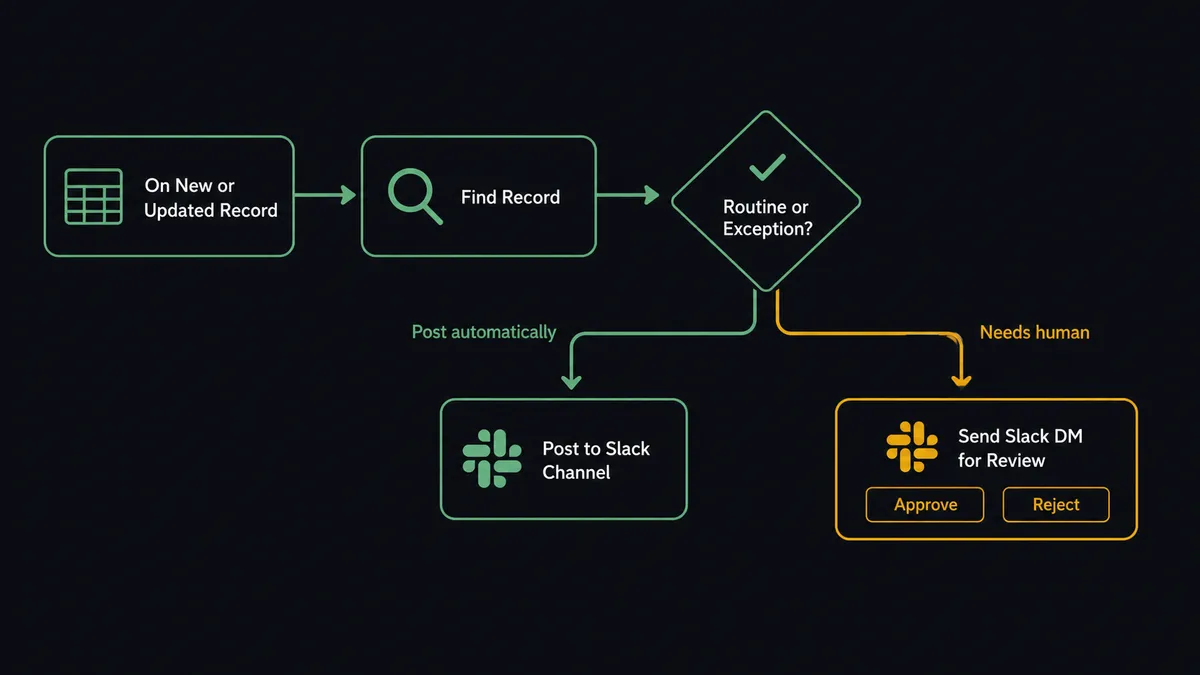
You connect Airtable and Slack by setting the On New or Updated Record trigger in Airtable to fire a Send Message to Channel or Send Direct Message action in Slack whenever a record is created or changed. FlowRunner is a visual AI-agent orchestration platform where automations run autonomously and pause for human judgment on the steps that carry real consequence. The same connection that fires a Slack notification on every record change can run as an AI agent that reads the record, reasons about it, and decides whether to post automatically or pause for a human decision first.
Why the manual process breaks down
Most operations teams patch Airtable and Slack together manually. A record changes in Airtable. Someone on the team notices. They copy the relevant fields into a Slack message and post it to the right channel. If the channel is busy or the person is traveling, the message gets buried or never sent.
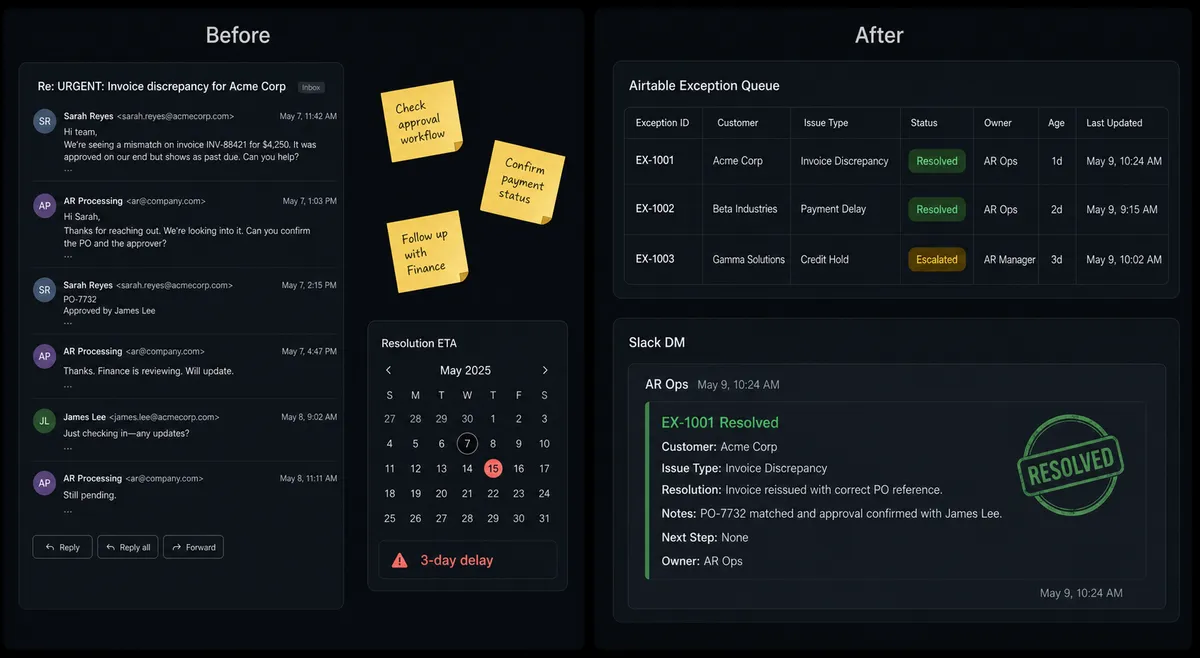
The real damage is in the exceptions. When a vendor invoice looks wrong or a project status changes unexpectedly, the right person needs to know immediately. Instead, the exception falls through the cracks. The AP clerk emails the finance manager. The manager responds three days later. The correction happens in the ERP a week after the original issue, by which point the context is gone and the reconciliation is manual work all over again.
The problem is not that Airtable and Slack are disconnected. The problem is that the connection depends on someone remembering to do it and having time to do it well.
How it works: the connection
Connecting Airtable to Slack in FlowRunner starts with the On New or Updated Record trigger. You specify the Airtable base and table to monitor. Every time a record is created or any field in an existing record changes, the trigger fires.
From there, the agent has access to Airtable’s full record toolset. Find Record retrieves the record with all its fields. Create Comment lets the agent log what it did directly on the Airtable record. Update Record moves the status forward as steps complete.
On the Slack side, the agent uses Send Message to Channel to post updates to a team channel, or Send Direct Message to route a specific exception to the right person. It can use Update Message in Channel to edit a posted card when a status changes without creating noise, and Find Member to resolve a name into a Slack user ID for precise routing.
A simple connection looks like this: when a record in your content calendar table changes status to Ready for Publishing, the agent posts a Slack message to your #content-ops channel with the record title, author, and publish date. The team knows a piece is ready without anyone manually announcing it.
A more structured connection looks like this: when an exception record is created in your AP Exceptions table, the agent finds the full record, extracts the issue type and vendor name, and sends a Direct Message to the responsible AP manager with a link to the Airtable record. When the manager marks the record Resolved in Airtable, On New or Updated Record fires again, and the agent confirms completion in the channel.
Can an AI agent run it? (And why a human stays in the loop)
The plain connection handles predictable scenarios well. The AI agent handles everything else.
An AI Agent in FlowRunner is a workflow node that reads its instructions, evaluates the data in front of it, and picks the right tools from its toolbox. It does not follow a fixed sequence. It reasons about the record and decides what to do. For an Airtable-to-Slack connection, the agent’s toolbox includes Create Record, Update Record, Find Record, Find Many Records, and Create Comment from Airtable, plus Send Message to Channel, Send Direct Message, Update Message in Channel, and Find Member from Slack.
Consider an exception queue scenario. The agent processes purchase orders overnight. For each PO in the queue, it calls Find Record to check the vendor’s history. A vendor with 18 months of clean payments and a PO that matches the contract amount gets posted to the ERP without interruption. But a vendor appearing for the first time, with a PO three times their quoted amount, triggers a different path.
The agent does not have a rule that says “escalate when amount exceeds $X.” It evaluates the combination of factors. First-time vendor. Unusual amount relative to the quote. No prior payment history in the record. That combination tells the agent this is not its call to make.
It invokes the human-in-loop flow as a callable tool. That flow sends a Direct Message in Slack to the finance manager: “Exception flagged for [Vendor Name]: first-time vendor, PO amount is 3x the quoted figure. Approve to post, or escalate to Finance Director?” The message includes the Airtable record link and an Approve button and an Escalate button, powered by the On Block Action trigger.
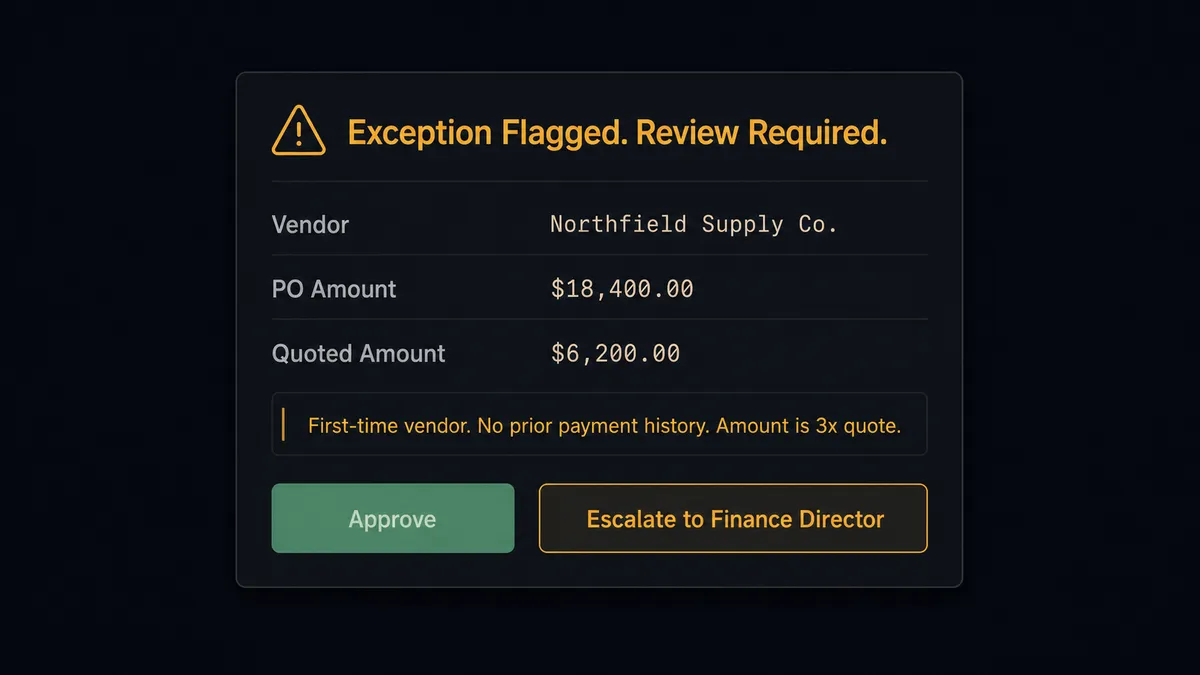
The workflow pauses. The manager reviews on their phone during their morning commute and clicks Approve. The On Block Action trigger fires. The agent reads the decision, calls Update Record to mark the exception Resolved in Airtable, logs the approver’s identity and timestamp via Create Comment, and posts a confirmation to #finance-ops via Send Message to Channel.
The decision, the decider, and the timestamp are all captured. Automatically.
This is not a sync tool. The agent knows when to stop and ask.
FlowRunner vs Zapier for the Airtable and Slack connection
Zapier is the tool most non-technical teams reach for first. It has a large library of pre-built Zaps, fast setup, and a familiar interface. For a simple trigger-to-notification workflow where every Airtable record change sends a fixed Slack message, Zapier works.
The gap appears when the workflow needs to reason.
| Feature | Zapier | FlowRunner |
|---|---|---|
| AI agent that reads and reasons about record data | No | Yes |
| Human-in-loop decisions via Slack buttons | No (add-on workaround) | Native, built-in tool |
| Agent decides when to escalate vs auto-process | No | Yes |
| Unlimited users on every pricing tier | No (user-based pricing) | Yes |
| Bring Your Own AI provider key (BYOK) | No | Yes |
| Audit trail with approver identity and timestamp | No | Yes |
| Self-hosted deployment option | No | Yes (Community Edition) |
Zapier handles the “always do X when Y” pattern. FlowRunner handles the “decide what to do based on the data” pattern. If your workflow has exceptions, the choice is clear.
Before and after
| Category | Before | After |
|---|---|---|
| Exception visibility | Exceptions logged in email threads or missed entirely | Every exception tracked as a structured Airtable record with issue type and source |
| Notification routing | Someone manually copies Airtable fields and posts to Slack | Agent sends a Direct Message to the right person with full context and a record link |
| Exception resolution time | ERP corrections happen days after the exception is found | Three exceptions approved and escalated in one Slack session in 6 minutes |
| Human involvement | All records require manual review and posting | Routine records post automatically; only genuine exceptions reach a human |
| Audit trail | No record of who approved what or when | Every decision captured with approver identity and timestamp in Airtable and the audit log |
What you can build
Exception queue with structured approval. When On New Record fires in an Airtable Exceptions table, the agent uses Find Record to pull full context, then calls Send Direct Message with Approve and Escalate buttons. The On Block Action trigger collects the decision. The agent calls Update Record to close the exception and Create Comment to log the resolution detail.
Content calendar publishing notification. On New or Updated Record fires when a content record reaches Ready for Publishing status. The agent reads the record fields, posts a formatted message to #content-ops via Send Message to Channel with title, author, and publish date, then calls Update Record to set status to Notified.
Project onboarding handoff. When On New Record fires for a new project entry, the agent calls Create Public Channel in Slack for the project workspace, uses Invite User to Channel to add the project team, and posts the Airtable base link to the new channel via Send Message to Channel. The team is provisioned and connected before anyone opens a laptop.
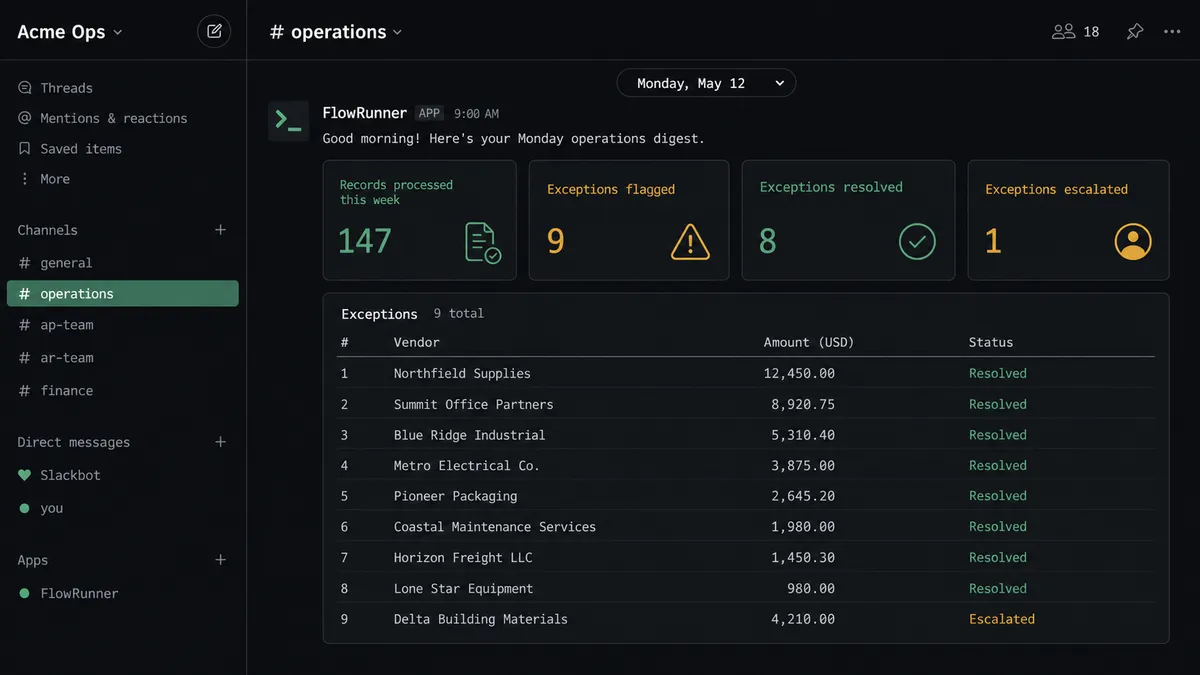
Weekly ops digest. Every Monday at 8am, the agent uses Find Many Records to pull all records modified in the past week, compiles a structured summary, and posts a Block Kit-formatted report to #operations via Send Message to Channel. Leadership gets operational visibility without pulling reports manually.
Vendor document intake. When On File Shared fires in a designated #vendor-docs Slack channel, the agent uses Get File Info to retrieve the document, processes it against Airtable vendor records using Find Record, and either creates an exception record in Airtable or posts a confirmation to the channel depending on what it finds.
Common questions
Is it free to connect Airtable and Slack on FlowRunner? FlowRunner offers a $100 credit on the Growth tier (no credit card required), which covers roughly 67 days of real workflow usage. After that, Growth is $45 per month with 12,000 executions included. All tiers include unlimited users and unlimited workflows.
Do I need my own AI or OpenAI key to run the agent? Yes. FlowRunner uses a Bring Your Own Keys (BYOK) model, so you connect your own AI provider key (OpenAI, Anthropic, or others). You pay the AI provider directly and keep full control of your data and costs.
Can I self-host FlowRunner? Yes. FlowRunner offers a free Community Edition for self-hosted single-instance deployments and an Enterprise tier for multi-instance clustering with the full compliance suite.
What happens when the agent is not sure what to do? The agent invokes a human-in-loop flow as a callable tool. It sends a Slack message with full context, the human decides, and the workflow resumes with the decision captured in the audit trail. The agent does not fail or skip. It asks.
Can I use this for both notification-only and two-way approval workflows? Yes. You can start with a simple trigger-to-message connection and add the On Block Action trigger later so that button clicks in Slack resume downstream workflow steps. The upgrade does not require rebuilding the flow.
How is this different from Zapier’s Airtable and Slack integration? Zapier handles simple trigger-to-action connections well. FlowRunner adds an AI agent layer that reads the record, reasons about it, and decides what to do. It can call multiple Airtable and Slack actions in any order, and it invokes a human-in-loop flow when the data warrants it. Zapier does not have that reasoning layer.
Getting started
FlowRunner starts with a $100 credit on the Growth tier. No credit card required. That covers roughly 67 days of real usage on most Airtable-to-Slack workflows.
Both connectors are available immediately after signup. See the Airtable integration page for the full list of triggers and actions, and the Slack integration page for channel, messaging, and interactive button capabilities.
Start at flowrunner.ai to claim your credit, or book a 30-minute walkthrough at calendly.com/flowrunner/intro if you want to see the agent decision logic before committing.