How to Connect GitHub with Jira Issues (With or Without an AI Agent)
Connect GitHub events to Jira Issues so new issues, pull requests, and releases automatically create or update Jira tickets, optionally as an AI agent that pauses for human judgment before assigning high-priority bugs.
How do you connect GitHub to Jira Issues?
You connect GitHub to Jira Issues by setting a GitHub trigger, such as On Issue Opened or On Pull Request Opened, and mapping it to a Jira Issues action such as Create Issue or Assign Issue in a FlowRunner workflow. FlowRunner is a visual AI-agent orchestration platform where automations run autonomously and pause for human judgment on the steps that carry real consequence. The same connection can run as an AI agent that reads the GitHub event, checks Jira for duplicates using Search Issues with JQL, creates or updates the ticket, and stops for a human before assigning a P1 bug to a specific engineer.
The problem: code events and project tracking live in separate worlds
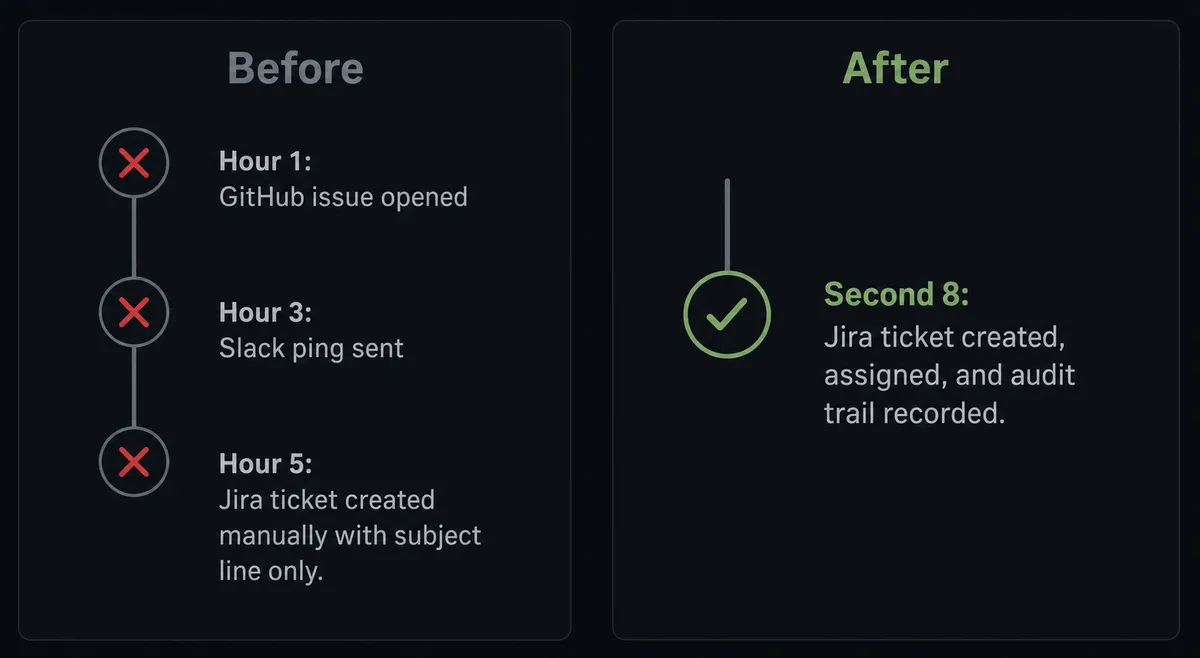
Development teams report the same frustrations every sprint. A customer files a support ticket about a production error. Someone screenshots it and pastes the summary into Slack. An engineer creates a Jira issue from memory. The original context, the error code, the transaction ID, the reproduction steps, sits in an email or a chat thread that nobody links to the ticket. The Jira issue has a subject line and nothing else.
Pull requests follow the same pattern. A reviewer merges a branch. The Jira ticket that tracks the feature sits in “In Progress” for two more days because nobody transitioned it. A release ships and the sprint board still shows four items open. The engineering manager opens Jira to check status and finds a sprint that looks healthy on paper and isn’t. Exceptions fall through the cracks not because engineers are careless but because moving information between GitHub and Jira is manual work, and manual work gets skipped when the team is moving fast.
How it works: the connection between GitHub and Jira Issues
FlowRunner connects the two systems through a straightforward trigger-to-action flow. Here is the plain version without the AI layer.
A GitHub event fires. The most common starting points are On Issue Opened (a new bug report or feature request lands in a repository), On Pull Request Opened (a developer opens a PR that maps to a tracked Jira item), or On Release Published (a release ships and the Jira tickets attached to it need to transition to Done).
The flow maps the GitHub payload to Jira fields. The issue or PR title becomes the Jira summary. The body becomes the description. GitHub labels map to Jira priority or components. The repository name maps to the Jira project key. FlowRunner calls Create Issue and the ticket exists in Jira with full context before anyone manually copies anything.
For PR merges, the flow calls Transition Issue to move the Jira ticket from In Progress to Done when Merge Pull Request completes. For releases, Get Project confirms the workflow states available, then Transition Issue closes out every ticket included in the release notes. Add Comment appends the release tag and workflow run link so the audit trail in Jira matches what shipped in GitHub.
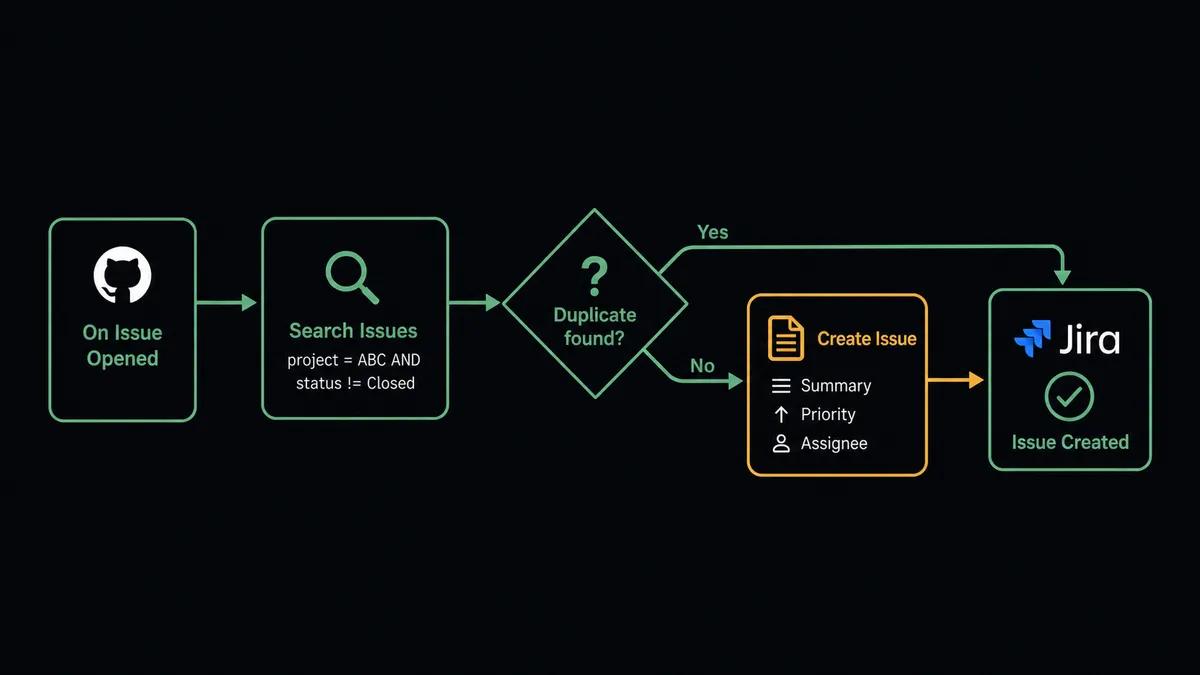
Can an AI agent run it? (and why a human stays in the loop)
The plain trigger-to-action connection creates tickets. The AI agent version decides what kind of ticket to create, whether one already exists, who should own it, and whether the situation is consequential enough to involve a human before writing anything to Jira.
Here is how the agent works on an inbound GitHub issue. The On Issue Opened trigger fires. The agent reads the issue title, body, and labels. It calls Search Issues with a JQL query built from the error signature or keywords in the title: project = SUPPORT AND summary ~ "payment timeout" AND created >= -30d. If a matching issue exists, the agent calls Add Comment to the existing ticket with the new context rather than creating a duplicate. If no match exists, the agent calls Get Project to confirm available issue types and components, then calls Create Issue with the full structured payload.
Up to this point, the agent has made three decisions: whether to search, whether to create or comment, and which project and issue type to use. None required a hardcoded rule. The agent read the data and picked the right tool.
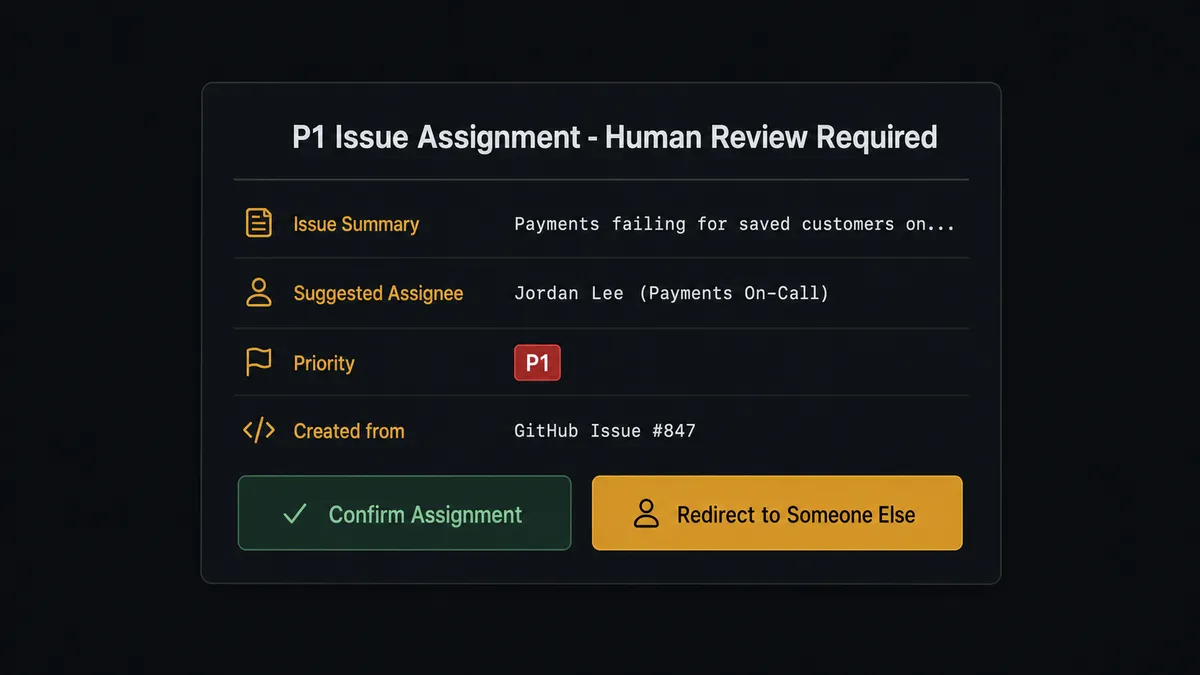
Then it evaluates priority. The agent does not use a fixed threshold like “if severity = P1, escalate.” It reads the language in the issue body. A report that includes phrases like “production down,” “all customers affected,” or “revenue impact” alongside a vendor the team has never seen before gets treated differently from a bug report with the same label that comes from a known internal test account. The agent calls its human-in-loop subflow: a Slack message to the team lead that reads “New P1 issue ready to assign: [Summary]. Suggested assignee: [Name] based on on-call rotation. Confirm or redirect?” The team lead gets the issue link, the full description, and two buttons.
This is the digital andon cord. The agent stops the line when it hits uncertainty. The pull cord is not a rule about dollar amounts or priority levels. It is the agent’s judgment about consequence, novelty, and risk.
On confirmation, the agent calls Assign Issue with the approved assignee and posts a comment with the workflow execution trace. The decision, the decider’s identity, and the timestamp are in Jira. Not in Slack. Not in someone’s memory.
FlowRunner vs the tool you’re probably comparing
If your team already uses n8n, that is the honest comparison to make. n8n is a developer-first workflow tool with strong GitHub support and a large community template library. If you have an engineer who enjoys building and maintaining node-based workflows, n8n handles this integration competently and the self-hosted pricing is attractive.
The differences show up in specific places.
| Feature | n8n | FlowRunner |
|---|---|---|
| GitHub and Jira connectors | Yes, both supported | Yes, both supported with 86 GitHub actions and 13 Jira actions |
| AI agent with native tool-use | LangChain agent nodes with bolt-on tools | Native AI agent node; integration actions are tools the agent picks and calls |
| Human-in-loop as a callable tool | Conditional branch with manual approval node | Human-in-loop subflow the agent invokes as a tool based on its own reasoning |
| Audit trail for agent decisions | Not native; requires custom logging | Built into every agent decision and human escalation at Professional tier |
| Unlimited users on all tiers | Users counted on some plans | Unlimited users and workflows on every FlowRunner tier |
| Non-technical team setup | Requires engineering to build and maintain | Operations teams can build and modify flows without developer involvement |
n8n is the right choice if you want maximum control, a large community, and an engineer to own the implementation. FlowRunner is the right choice if the team using the workflow is not technical, if the decisions inside the flow involve real consequence and need an audit trail, or if you want the agent to reason about the situation rather than follow a fixed sequence.
Before and after
| Category | Before | After |
|---|---|---|
| Ticket creation time | Engineer reads GitHub issue or Slack message and manually opens Jira, often hours later | Jira issue created with full context within seconds of the GitHub event firing |
| Ticket quality | Subject line and copy-pasted summary with no structured fields | Summary, description, priority, labels, source link, and assignee populated automatically |
| Duplicate tickets | Same bug filed multiple times as different team members notice the issue independently | Agent runs Search Issues before creating; comments on duplicates instead of creating new tickets |
| P1 assignment accountability | Assignment decided in Slack thread with no record | Agent pauses, routes to team lead, records the confirmed assignee and decision timestamp in Jira |
| Sprint visibility | Engineering manager opens Jira manually to find blocked or unassigned items | Agent runs a daily JQL query and posts sprint health to the engineering channel automatically |
What you can build
Bug triage with duplicate detection. The On Issue Opened trigger fires when a customer or engineer opens a GitHub issue. The agent calls Search Issues with the error text, adds context to an existing ticket via Add Comment, or creates a new one via Create Issue with all structured fields populated. Your Jira backlog stays clean without anyone managing it.
PR merge to Jira transition. When a pull request is approved and Merge Pull Request runs, the agent finds the linked Jira ticket via Search Issues using the branch name or PR title, then calls Transition Issue to move it from In Progress to Done. The sprint board reflects reality the moment code merges.
Release shipped to sprint closeout. On Release Published fires when a tag ships. The agent calls List Workflow Runs to confirm the release pipeline ran clean, then runs a JQL query to find all tickets associated with the release milestone and calls Transition Issue on each. It posts a release summary comment with the workflow run status and the changelog.
Daily sprint health monitor. On a schedule each morning, the agent calls Search Issues with a JQL query targeting unassigned or blocked tickets in the active sprint. It posts a structured summary to the engineering Slack channel with issue counts and days remaining. For sprints where the blocked count exceeds a threshold, it routes to the engineering manager via the human-in-loop subflow for an acknowledgment.
Access audit on new collaborator. The New Collaborator trigger fires when someone gains access to a repository. The agent calls Get Issue to check whether an onboarding ticket exists for the user, creates one via Create Issue if not, and assigns it to the security team. Any collaborator added to a production repository above a size threshold pauses for a team lead to confirm the addition was intentional.
Common questions
Is it free to connect GitHub and Jira Issues on FlowRunner? FlowRunner offers a $100 credit on the Growth tier, which covers roughly 67 days of real workflows with no credit card required. After that, Growth starts at $45 per month and includes unlimited users and workflows.
Can I self-host FlowRunner for this integration? Yes. FlowRunner offers a self-hosted Community Edition at no cost and an Enterprise self-hosted tier with full compliance features. The GitHub and Jira Issues connectors work on both.
Does the AI agent need my own API key to work? FlowRunner uses a bring-your-own-key model. You connect your preferred AI provider (such as OpenAI, Anthropic, or others) and the agent uses your key. You control the model and the cost.
What happens when the agent is not sure about an assignment? The agent pauses execution and sends a Slack message with the issue details and suggested assignee. The team lead confirms or redirects. The agent resumes with the decision recorded in the audit trail.
Does Jira Issues have triggers I can use to start a FlowRunner flow? The Jira Issues connector in FlowRunner currently provides 13 actions but no polling triggers. Start flows from the GitHub side using events like On Issue Opened, On Pull Request Opened, or On Release Published, then drive Jira actions from there.
Can I use JQL queries inside the agent? Yes. The Search Issues action accepts full JQL syntax, so the agent can query by project, priority, assignee, status, label, and custom fields before deciding what to do next.
Getting started
FlowRunner’s $100 Growth credit covers roughly 67 days of real workflows with no credit card required. Corporate email required at signup.
Both connectors are ready to use today. Review the capability details at /integrations/github and /integrations/jira-issues, then start building at flowrunner.ai.
If you want to see the agent run a live triage flow before committing, book a 30-minute session at calendly.com/flowrunner/intro. Bring a real GitHub repository and a Jira project. The demo runs against your actual data.