How to Connect Google Calendar with Slack (With or Without an AI Agent)
Connect Google Calendar and Slack so new events trigger instant channel notifications or direct messages, optionally run by an AI agent that pauses for a human before calendar changes affect multiple attendees.
How do you connect Google Calendar to Slack?
You connect Google Calendar to Slack by using a trigger (such as a new Calendly booking or a scheduled poll) to fire a FlowRunner workflow that calls the Google Calendar Create Event or List Events action, then passes the event data to Slack’s Send Message to Channel action. FlowRunner is a visual AI-agent orchestration platform where automations run autonomously and pause for human judgment on the steps that carry real consequence. The same connection can run as an AI agent that reads event context, decides which channel to notify, and asks a human before making calendar changes that affect multiple attendees.
The problem with manual calendar-to-Slack coordination
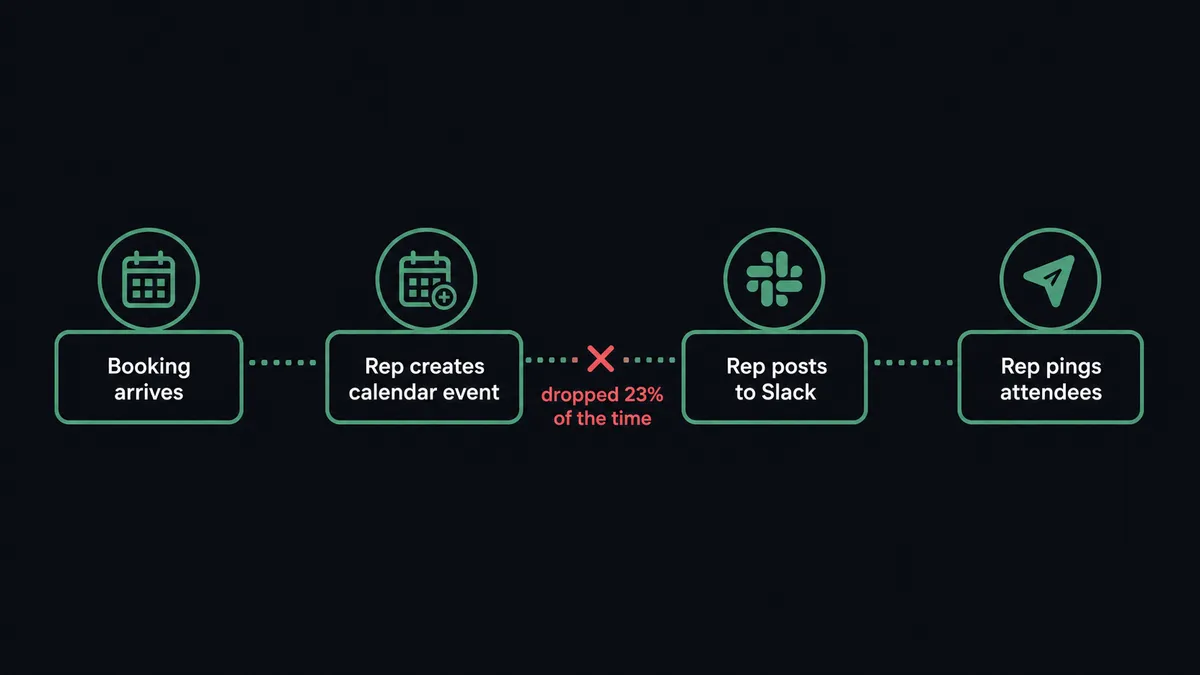
When a new client meeting is booked, someone has to create the calendar entry, add attendees, drop the meeting link in the right Slack channel, and ping the team. That is four manual steps that happen after every booking. When the meeting gets rescheduled, the sequence repeats. A busy ops lead handles a dozen of these a week. Each one is ten minutes of work that falls on whoever noticed the booking first.
The deeper problem is not the time. It is the exceptions that fall through the cracks. A meeting gets rescheduled but the Slack message goes to the wrong channel. An attendee is added to the calendar but never notified in Slack. A client-facing event gets deleted but nobody updates the #client-ops channel. Coordination between calendars and chat relies entirely on people remembering to do it, and people do not always remember.
How it works: the connection
The Google Calendar integration gives FlowRunner agents five actions: Create Event, Get Event, List Events, Update Event, and Delete Event. Slack contributes 16 actions and 8 triggers, including Send Message to Channel, Send Direct Message, Update Message in Channel, and the On Block Action trigger that collects interactive button decisions.
A simple connection works like this. A Calendly booking fires. The agent calls Create Event in Google Calendar with the prospect’s name as the title, the meeting link and deal notes in the description, and the prospect as an attendee. Then it calls Send Message to Channel in Slack with the event title, start time, and a link to the calendar entry. The sales rep sees the meeting in their calendar and the team sees it in Slack. Neither required a manual step.
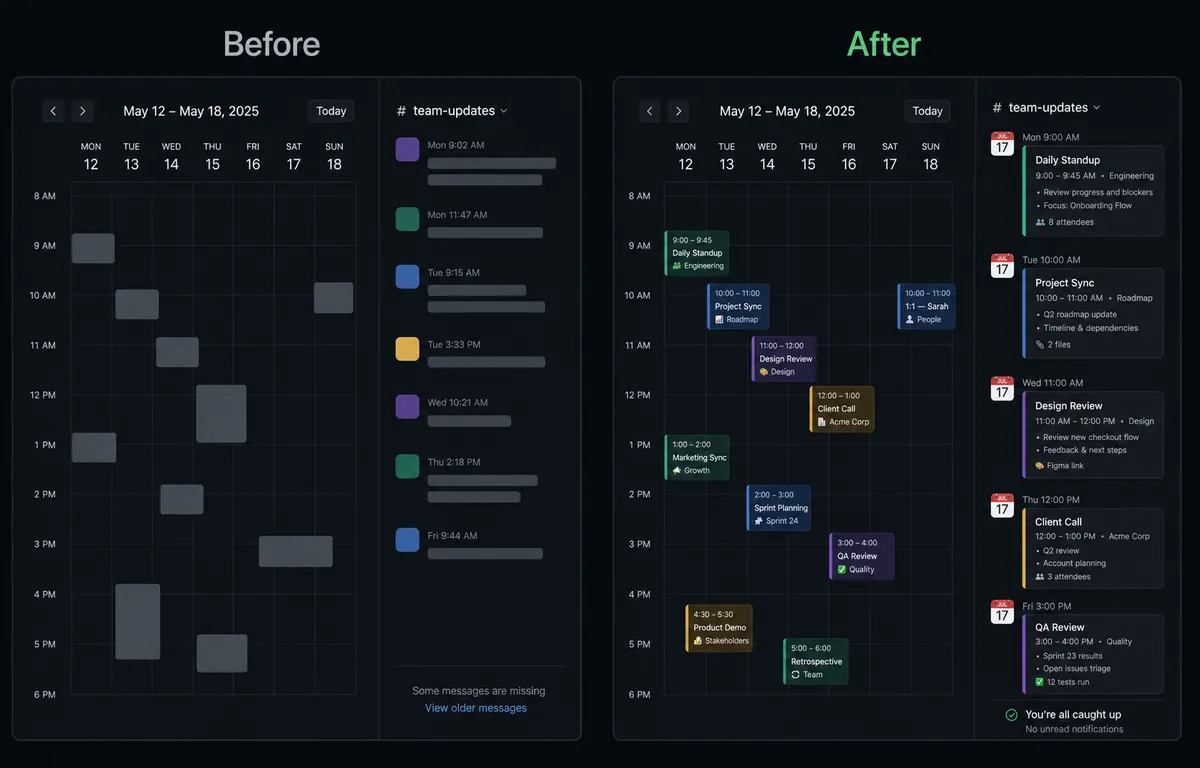
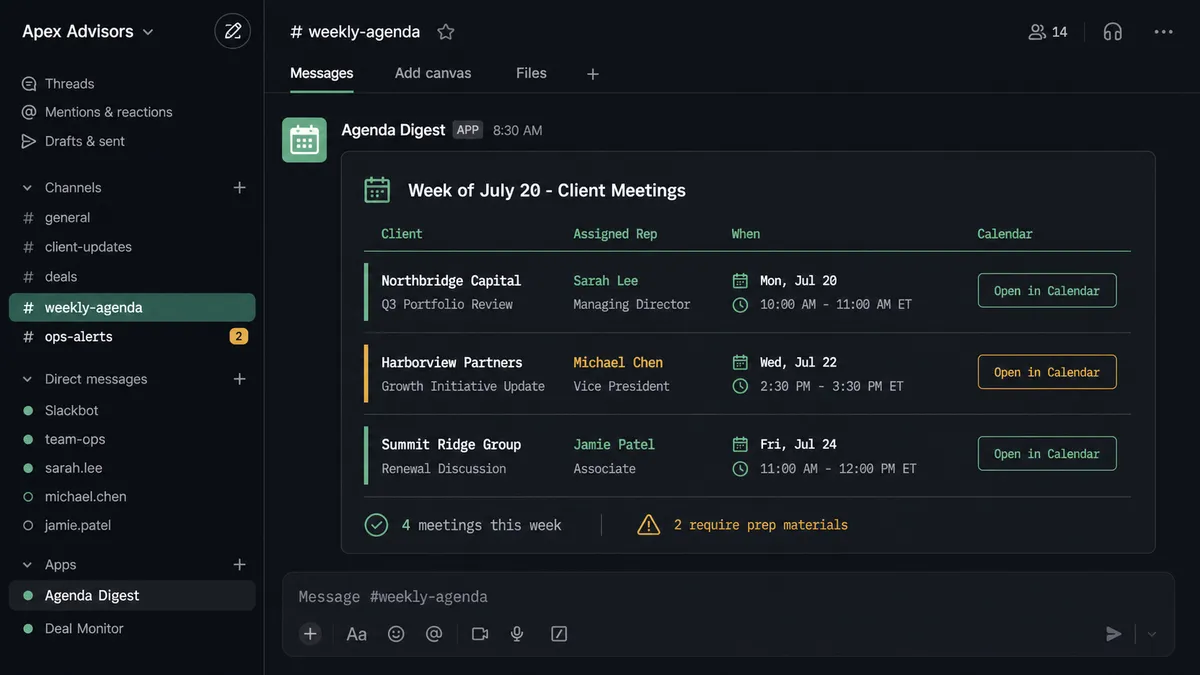
For digest workflows, a scheduled trigger fires every Friday at 4pm. The agent calls List Events for the coming week, filters for client meetings, and posts a structured summary to #client-ops via Send Message to Channel. Each entry includes the client name, scheduled time, assigned rep, and a link to the calendar event. The team starts Monday knowing exactly what is on the week’s schedule.
Can an AI agent run it? (And why a human stays in the loop)
A plain trigger-and-notify connection handles the routine cases. An AI agent handles everything else.
The agent reads each Google Calendar event, evaluates its context, and decides what to do. A standard internal meeting gets a brief Slack post. A client meeting with three external attendees gets a formatted Block Kit message routed to #client-ops with the rep mentioned directly. A meeting that overlaps with an existing commitment gets flagged before the calendar entry is confirmed.
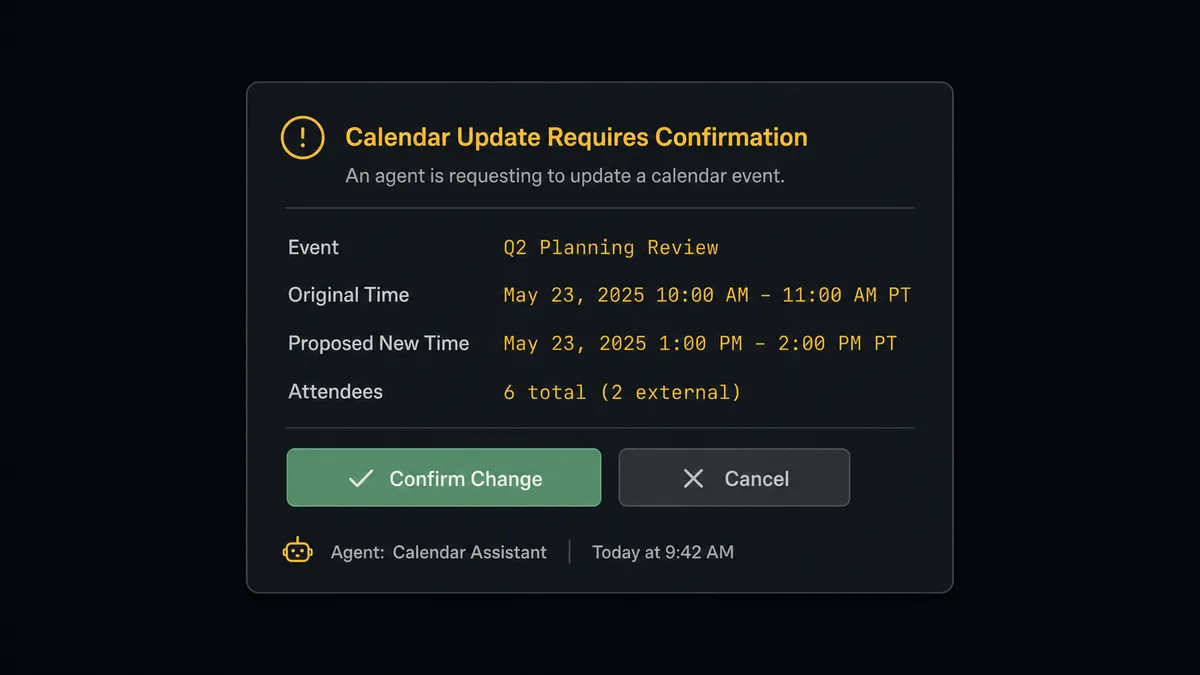
Here is where the agent’s judgment matters most. An ops manager mentions the FlowRunner agent in Slack to reschedule a recurring client meeting. The agent calls List Events, finds the event, and checks attendees. There are six people on the invite, including two external contacts. Before calling Update Event, the agent pauses. This is not a hardcoded rule about attendee count. The agent evaluated the context: external attendees, a recurring series, and a client relationship. It decides this is not a calendar update to make without confirmation.
The agent invokes a human-in-loop flow as a callable tool. A Slack message lands in the organizer’s DM: “I need to update the time for [Client Name] Weekly Sync on Thursday. Proposed new time: 2pm Friday. This affects 6 attendees including 2 external contacts. Confirm the change or select a different time?” Two buttons: Confirm and Cancel. The organizer taps Confirm from their phone. The agent calls Update Event, posts the change summary to #client-ops, and sends Direct Messages to each attendee with the updated details.
The decision, the decider’s identity, and the timestamp go into the audit trail automatically.
This is the digital andon cord. The agent stops the line when the change carries consequence. It does not fail. It does not skip. It asks.
FlowRunner vs Zapier
Zapier is the right comparison for most non-technical teams considering a Google Calendar and Slack connection. It has excellent documentation, a fast setup experience, and a library of pre-built templates that cover common notification patterns. If you need a straightforward “new event fires a Slack message” flow, Zapier will get you there in minutes.
The differences show up when your requirements grow:
| Feature | Zapier | FlowRunner |
|---|---|---|
| Basic trigger-to-notify connection | Yes | Yes |
| AI agent with access to both integrations as tools | No | Yes |
| Human-in-loop decisions collected in Slack | No (requires workarounds) | Native. The agent sends interactive buttons and resumes on response. |
| Agent decides when to escalate (not a fixed threshold) | No | Yes. The agent reasons about context before invoking the human step. |
| Unlimited users on every plan | No (user-based pricing on higher tiers) | Yes. All tiers include unlimited users. |
| Bring Your Own AI provider key | No | Yes (BYOK model) |
| Pricing model | Per-task execution | Per-workflow execution with clear tier limits |
If your team’s current process is “new booking creates a calendar event and sends a Slack message,” Zapier is a reasonable tool. If you need an agent that reads event context, routes differently based on what it finds, and knows when to pause for a human before making a consequential calendar change, Zapier does not have a path there.
Before and after
| Metric | Before | After |
|---|---|---|
| Calendar event creation | Sales rep creates event manually after each booking | Event created automatically within seconds of booking |
| Meeting context in calendar | Title only; rep scrambles for deal notes before the meeting | Deal notes, account history, and meeting link in every event description |
| Slack notification | Rep manually posts to the correct channel when they remember | Agent routes notification to the right channel automatically based on event type |
| Rescheduling multi-attendee events | Organizer updates calendar, emails attendees, posts in Slack | Agent proposes change, confirms with organizer via Slack button, updates event and notifies attendees |
| Weekly meeting digest | Manager compiles calendar view manually before Monday standup | Structured summary posted to #client-ops every Friday at 4pm automatically |
| Attendee notifications on changes | Inconsistent; dependent on who noticed the update | Every affected attendee receives a Direct Message with updated details |
What you can build
Booking-to-channel pipeline. When a Calendly On Invitee Created fires, the agent calls Create Event with deal context from your CRM, then posts a structured notification to the appropriate Slack channel. A prospect demo goes to #sales-pipeline. A client onboarding goes to #client-ops. The agent routes based on the event type in the booking data.
Multi-attendee change confirmation. When a calendar update would affect more than two external attendees, the agent pauses before calling Update Event. It sends a Slack DM to the organizer with the proposed change and interactive Approve and Cancel buttons. Approved changes go through. The organizer never discovers an unilateral calendar edit after the fact.
Weekly agenda digest. Every Friday, the agent calls List Events for the following week, enriches each client meeting with account data, and posts a formatted agenda to #team-updates using Block Kit. The team reads the week’s schedule in Slack without opening a calendar.
Conflict detection and routing. An agent monitors a shared booking calendar with List Events. When a new event overlaps an existing one, it posts an exception to #scheduling-ops with both event details and a Resolve button. The ops lead handles the conflict from Slack without touching the calendar directly.
Event deletion safety net. Before calling Delete Event on any meeting with external attendees, the agent surfaces the deletion request in Slack with the event name, attendee list, and reason for deletion. A human confirms or cancels. No client-facing event gets removed from the calendar without a decision in the audit trail.
Common questions
Is it free to connect Google Calendar and Slack on FlowRunner?
FlowRunner starts with a $100 credit on the Growth plan, which covers roughly 67 days of real workflow usage. No credit card is required. After the credit runs out, Growth costs $45 per month for 12,000 executions and includes unlimited users and workflows.
Can I self-host FlowRunner?
Yes. FlowRunner offers a free Community Edition for self-hosting on a single instance. Enterprise self-hosting with multi-instance clustering and full compliance features is available at custom pricing.
Does the AI agent need my own AI provider key?
Yes. FlowRunner uses a Bring Your Own Key (BYOK) model. You connect your own OpenAI, Anthropic, or other provider account. FlowRunner orchestrates the agent; your key runs the AI. This keeps your data out of shared model training.
What happens when the agent is not sure what to do?
The agent sends a Slack message to the right person with full context, what it found, why it stopped, and what options are available. Interactive buttons collect the decision. The agent resumes when the human responds. The decision, the decider, and the timestamp are captured in the audit trail.
Can the agent notify different Slack channels depending on the calendar event type?
Yes. The agent reads the event details, reasons about the category or attendee list, and routes the notification to the appropriate channel. A client meeting might post to #client-ops while an internal review posts to #team-updates.
What if I only want a simple trigger-and-notify, not an AI agent?
FlowRunner supports plain automation without AI. Set a trigger on a Google Calendar action and map it to a Slack Send Message to Channel action. No agent node required. You can add AI reasoning later if your needs grow.
Getting started
FlowRunner includes a $100 credit on the Growth plan, roughly 67 days of real workflow usage on a 12,000 execution-per-month tier. No credit card required. Corporate email required.
Connect both integrations to get started:
Start a free trial at flowrunner.ai or book a 30-minute walkthrough at calendly.com/flowrunner/intro. Bring your current process. We will show you what the same workflow looks like when your team only touches the exceptions.