How to Connect Google Sheets with Mailchimp Marketing (With or Without an AI Agent)
Connect Google Sheets to Mailchimp Marketing so every new row automatically adds or updates the subscriber, applies the right tag, and enrolls them in the matching email journey, optionally as an AI agent that pauses for a human before sending campaigns to large lists.
How do you connect Google Sheets to Mailchimp Marketing?
When a new row lands in your Google Sheet, FlowRunner fires On New Row, reads the row values against the mapped header columns, calls Add Or Update List Member to sync the contact to the correct Mailchimp audience, and applies the segment tag using Add Tag. FlowRunner is a visual AI-agent orchestration platform where automations run autonomously and pause for human judgment on the steps that carry real consequence. That same connection can run as an AI agent that validates each row before acting on it, routes exceptions to a reviewer before they reach your audience list, and pauses for a human before sending any campaign to a large list.
The problem it solves
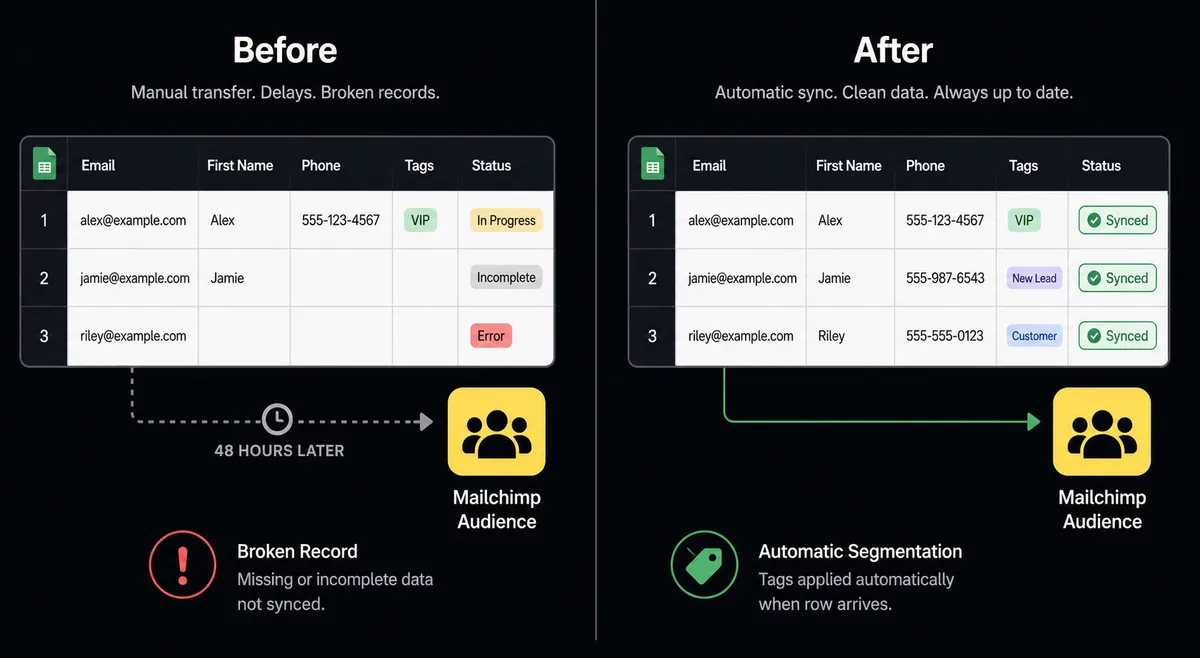
Right now, someone on your team is maintaining two separate systems that should be talking to each other but are not. A spreadsheet collects contacts from a form, an event, or a manual data entry process. Then, on a schedule that depends on whoever has time, someone exports that sheet, formats it, and imports it into Mailchimp. The contacts that came in Monday morning do not land in an email sequence until Wednesday afternoon, well past the moment when they were most engaged.
The second problem is what falls through the cracks in that manual process. A row with a missing email address gets imported and creates a broken Mailchimp record. A row tagged with the wrong lead source lands in the wrong email sequence and receives messaging that does not fit. These errors are invisible until a marketer notices that open rates on a segment are unusually low, weeks after the bad data went in. By then, the engagement window has closed and the audit trail is gone.
How it works: the connection
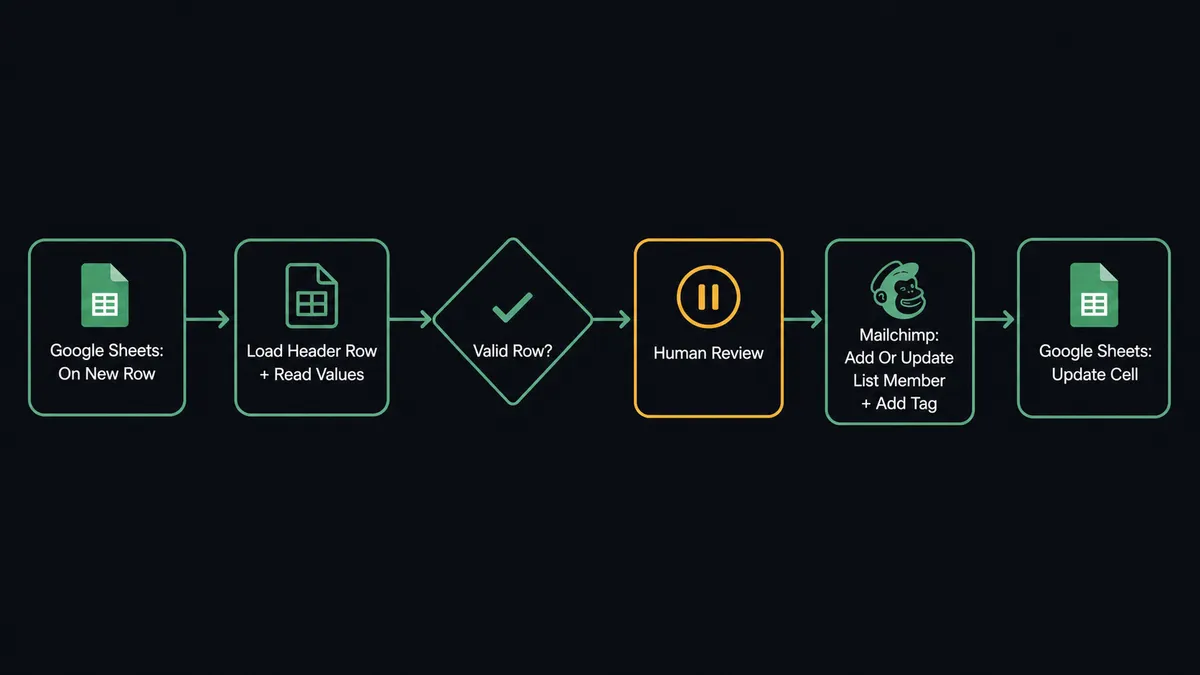
FlowRunner watches the specified sheet using the On New Row trigger, which polls the Google Sheets API and fires the moment a new row is added. The agent immediately calls Load Header Row to map the column names and reads the row values against that column map.
The agent then calls Add Or Update List Member in Mailchimp. This action is idempotent: it checks whether a subscriber with that email address already exists and updates the record if found, or creates a new subscriber if not. Contact name, email, and any additional columns from the sheet, such as company name, phone number, or lead source, map directly into Mailchimp subscriber fields. No duplicates. No manual deduplication.
After the subscriber record is current, the agent calls Add Tag. The tag corresponds to a column in the sheet. A contact who came in through a webinar registration gets the “Webinar” tag and lands in the post-event nurture sequence. A contact who filled out a pricing inquiry form gets the “Pricing Intent” tag and routes to a sales-focused sequence. The tag is applied at the moment the row arrives, not after a delay.
The agent also calls Update Cell to write a processing status back to the sheet. The row gets a “Synced” status and a timestamp. When someone opens the spreadsheet, they can see exactly which rows have been processed and which are waiting.
Can an AI agent run it? (and why a human stays in the loop)
A rule-based integration connects the trigger to the action and stops there. An AI agent reads the data, evaluates what it finds, and makes decisions based on context. For a Google Sheets to Mailchimp connection, that distinction shows up in two places: row validation and campaign sends.
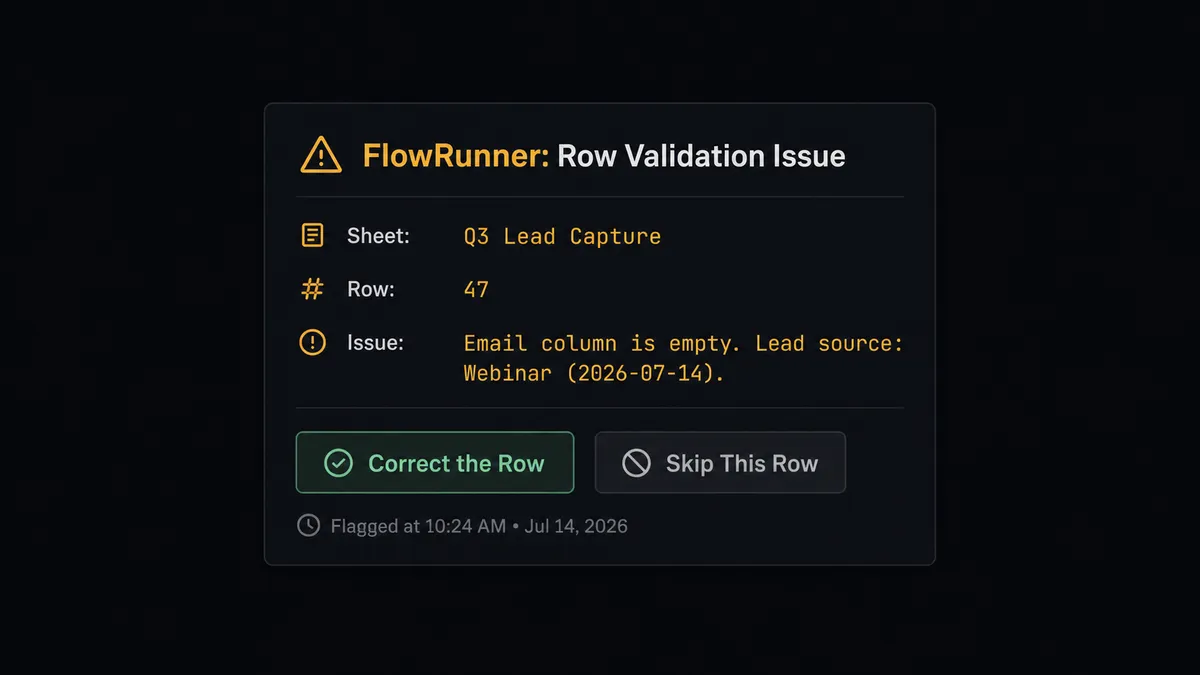
On the validation side, the agent reads each row before acting on it. A complete row with a valid email, a recognized lead source, and all required fields flows through automatically: subscriber updated or created, tag applied, status written back to the sheet. A row with a missing email address or an unrecognized value in the lead source column is a different situation. The agent does not push bad data into Mailchimp. It holds the row and routes it to the data owner: “Row 47 in ‘Q3 Lead Capture’ is missing a value in the Email column. Correct the row and I will reprocess it, or tell me to skip it.” The owner fixes the row. The agent reprocesses it. Clean rows flow through automatically; malformed rows get a human in the loop before they reach a connected system.
On the campaign side, when a workflow builds and queues a campaign using Add Campaign and Send Campaign, the agent evaluates the audience size before sending. Below the configured threshold, it sends automatically. Above it, the agent invokes the human-in-loop flow as a callable tool: “Campaign ‘Webinar Follow-Up July’ is ready to send to 6,400 subscribers. Subject line: ‘Thanks for joining us.’ Scheduled send: today at 10:00 AM. Approve send or review content first?” The marketing manager approves or redirects. The agent only sends after that decision is confirmed.
This is what prospects call a “digital andon cord.” The agent stops the line when it hits a step that carries real consequence. It does not just execute. It knows when to ask.
FlowRunner vs the tool you’re probably comparing
If you are evaluating tools to connect Google Sheets and Mailchimp, you are most likely comparing against Zapier. Zapier is genuinely good at connecting two tools quickly for a single-path rule. It has a large integration library, a fast setup experience, and broad ecosystem support. For a straightforward On New Row to Add Member trigger-action pair, Zapier gets you there quickly.
Here is where the comparison shifts for this specific use case:
| Feature | Zapier | FlowRunner |
|---|---|---|
| Basic trigger-action connection | Yes, fast to configure | Yes, same speed |
| Row validation before acting | Not native (requires multi-step filters) | Native; agent evaluates each row before acting |
| Native human approval step | Not native (requires manual Slack wiring) | Native callable tool; agent invokes it by judgment |
| Audit trail of reviewer decisions | No | Yes; reviewer identity and timestamp captured |
| Write status back to the sheet | Requires a separate Zap step | Single agent action; Update Cell writes back automatically |
| Unlimited users on every tier | No (seat-based pricing) | Yes |
Before and after
| Category | Before | After |
|---|---|---|
| Contact sync to Mailchimp | Manual export and import on a delayed schedule | Row lands in Mailchimp the moment On New Row fires |
| Data quality in the audience | Bad rows import unchecked; broken records discovered weeks later | Agent validates every row before acting; exceptions held for review |
| Email sequence assignment | Whoever does the import decides the tag; timing is inconsistent | Column value maps to tag automatically at row arrival |
| Campaign sends | Sent manually after pulling and cross-checking the list | Agent sends automatically below threshold; routes for approval above it |
| Sheet status visibility | No way to see which rows have synced | Update Cell writes “Synced” and a timestamp to every processed row |
| Audience currency | Reflects the last manual import, not today | Reflects the current state of the spreadsheet in real time |
What you can build
Event registration to nurture sequence. When On New Row fires from a webinar registration sheet, the agent reads the event name column, calls Add Or Update List Member to sync the registrant to the correct Mailchimp audience, and applies the event tag with Add Tag. Registrants land in the post-event nurture sequence immediately, with no manual import step between registration and first email.
Lead source segmentation at scale. A single lead capture sheet receives contacts from multiple channels: ads, organic search, partner referrals, and events. The agent reads the Lead Source column on every new row and applies the corresponding Mailchimp tag. Each contact lands in the sequence matched to their entry point. The audience stays segmented accurately without anyone maintaining the import logic manually.
Row validation gate with reviewer routing. For sheets where data quality is inconsistent, such as manually entered contacts or data from multiple contributors, the agent validates each row before acting. Complete rows flow through. Rows missing required fields, an email address, a company name, or a recognized lead source, are held and routed to the sheet owner for correction. Only approved rows reach Mailchimp.
Scheduled campaign send with an approval gate. An agent builds a campaign each week using Add Campaign, loads the target audience using Get Lists Info, and queues the send. For audiences below the configured threshold, it calls Send Campaign automatically. For large audiences, it routes to the marketing manager for approval first. One consistent process across every campaign, regardless of which team member scheduled it.
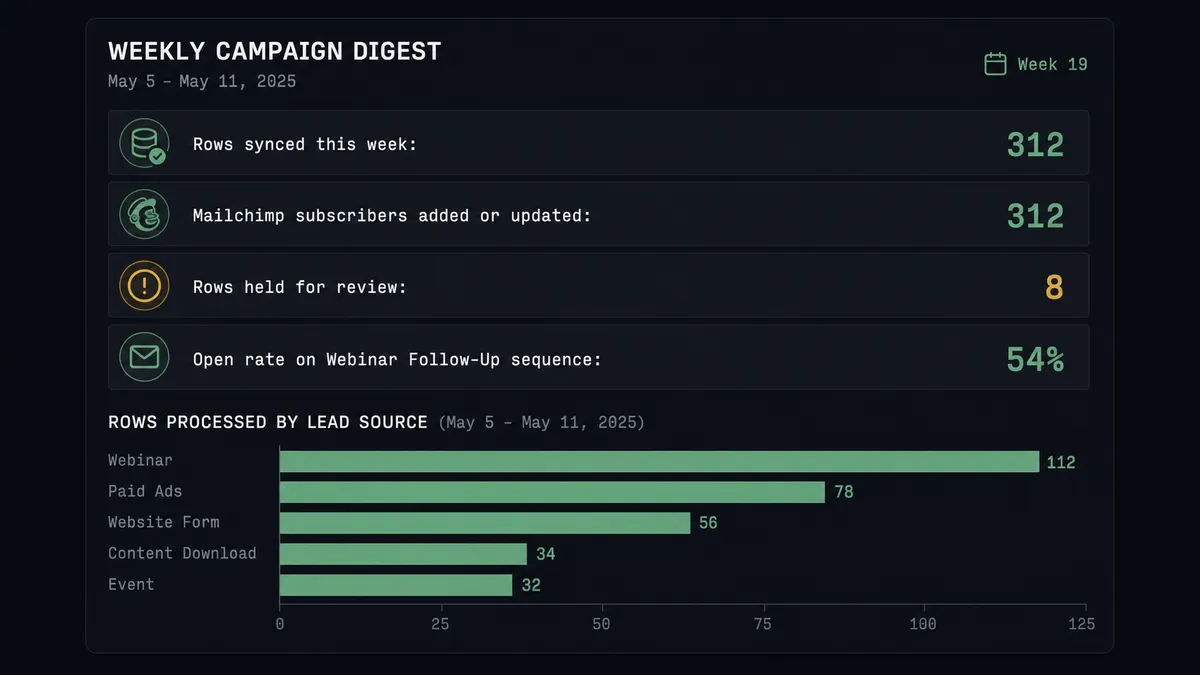
Campaign performance digest posted to the sheet. Every Monday, the agent calls Get Campaign Report for each active campaign to pull open rates, click rates, and list growth data for the prior week. It formats the results and calls Add Rows to append the weekly metrics to a performance tracking sheet. The marketing team opens one spreadsheet and sees every campaign’s performance history in a single place.
Common questions
Is it free to connect Google Sheets and Mailchimp Marketing on FlowRunner? FlowRunner offers a $100 trial credit on the Growth tier, which covers roughly 67 days of real work with no credit card required. The Growth plan is $45 per month and includes unlimited users, unlimited workflows, and full access to both the Google Sheets and Mailchimp Marketing connectors.
Can I self-host the Google Sheets and Mailchimp Marketing connection? Yes. FlowRunner offers a self-hosted Community Edition at no cost and an Enterprise self-hosted option with multi-instance clustering and a full compliance suite. Both include the same connector library as the cloud-hosted tiers.
Does the AI agent need my own API keys for Google Sheets and Mailchimp? Google Sheets connects via OAuth2 and Mailchimp connects via API key. Both credentials stay in your environment. FlowRunner uses a bring-your-own-keys model; your keys are never shared with FlowRunner’s AI providers.
What happens when the agent finds a row with missing or invalid data? The agent validates the row against required fields before acting on it. If a row fails validation, the agent holds it, marks it in the sheet, and routes it to the data owner via Slack with the specific field that needs correction. It reprocesses the row only after the owner fixes or approves it.
What happens when the agent is about to send a campaign to a large audience? The agent invokes a human-in-loop flow as a callable tool and pauses execution. It sends the campaign name, subscriber count, subject line, and scheduled send time to a marketing manager via Slack, and resumes only after the manager approves. The decision, reviewer identity, and timestamp are all captured in the audit trail.
Can I tag Mailchimp subscribers based on data in my Google Sheet? Yes. When On New Row fires, the agent reads the row values and calls Add Tag in Mailchimp to apply the relevant segment tag based on any column in the sheet, such as product interest, region, or lead source, before enrolling the subscriber in the matching email sequence.
Getting started
FlowRunner’s Growth plan starts at $45 per month and includes a $100 trial credit, which covers roughly 67 days of use on this connection with no credit card required. Every plan includes unlimited users and unlimited workflows.
Both connectors are ready to use:
Start building at flowrunner.ai or book a 30-minute walkthrough at calendly.com/flowrunner/intro.