How to Connect Microsoft Teams with Jira Issues (With or Without an AI Agent)
Connect Microsoft Teams and Jira Issues so that exceptions flagged in Teams automatically become tracked, assigned Jira issues, with a human on the consequential step.
How do you connect Microsoft Teams to Jira Issues?
You connect Microsoft Teams and Jira Issues by building a flow in FlowRunner that reads messages or exceptions from a Teams channel and calls Create Issue in Jira to open a tracked, assigned ticket. FlowRunner is a visual AI-agent orchestration platform where automations run autonomously and pause for human judgment on the steps that carry real consequence. The same connection can run as an AI agent that reads the full context of each exception, decides whether to auto-assign or escalate, and posts a human decision request back into Teams before the ticket is created.
Why this connection matters in the first place
Right now, exceptions live in Teams conversations. Someone flags a problem in a channel. Another person says they will look into it. Three days later, nothing is in Jira and the issue has fallen through the cracks. The work that should be tracked is sitting in a chat thread that nobody searches, assigned to nobody, with no due date and no resolution on record.
The reverse problem is just as common. Engineering creates the Jira ticket but the operations team who reported the issue has no visibility. They ask for status in Teams. Someone copy-pastes a Jira link. The conversation happens in two places and neither is complete. Your team spends real time bridging two systems that should talk to each other without anyone’s help.
How it works: the connection between Teams and Jira
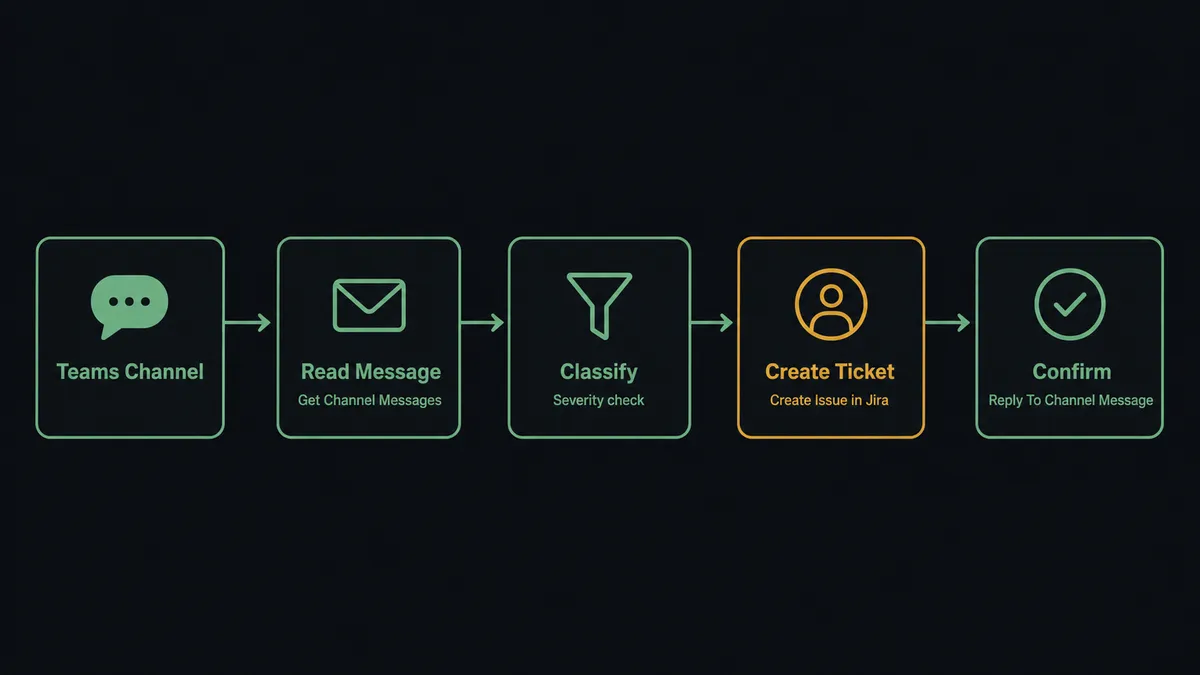
The basic connection works like this. A FlowRunner flow monitors a designated Teams channel using Get Channel Messages, or it receives a trigger from an upstream system such as a form submission, webhook, or monitoring alert. The flow reads the incoming data, maps the relevant fields, and calls Create Issue in Jira with the summary, description, priority, and assignee already filled in. Then it calls Reply To Channel Message in Teams to post a confirmation with the Jira issue link back into the same thread.
Every field that matters travels across. The customer name, error code, affected transaction, severity level, and any attached context lands in the Jira issue before anyone opens Jira manually. The engineer assigned to the ticket has full context from the moment the issue exists. The operations team in Teams sees the confirmation reply in the same thread where they reported the problem.
You can also run this in the other direction. When an agent transitions a Jira issue to Done, a separate flow reads the status change and posts a Send Channel Message to the relevant Teams channel to close the loop.
Can an AI agent run it? (and why a human stays in the loop)
A static trigger-and-action flow moves data but makes no decisions. The AI agent upgrade changes that. In FlowRunner, an AI Agent node receives its instructions and a set of tools, then decides what to do based on the actual data in front of it.
For the Teams to Jira connection, the agent’s toolbox includes Create Issue, Get Issue, Assign Issue, Add Comment, Search Issues, Send Channel Message, Reply To Channel Message, and Send Chat Message. The agent reads the exception, evaluates severity, checks whether a similar issue already exists via Search Issues with a JQL query, and chooses the right Jira project and assignee based on component ownership data.
Here is where the human-in-loop step does real work. The agent does not use a hardcoded threshold like “if priority is P1, escalate.” It evaluates context. If the same team member has three open P2 issues and the rotation says they are on call, the agent might decide that assigning them a fourth without checking is a bad call. It invokes the escalation sub-flow as a callable tool.
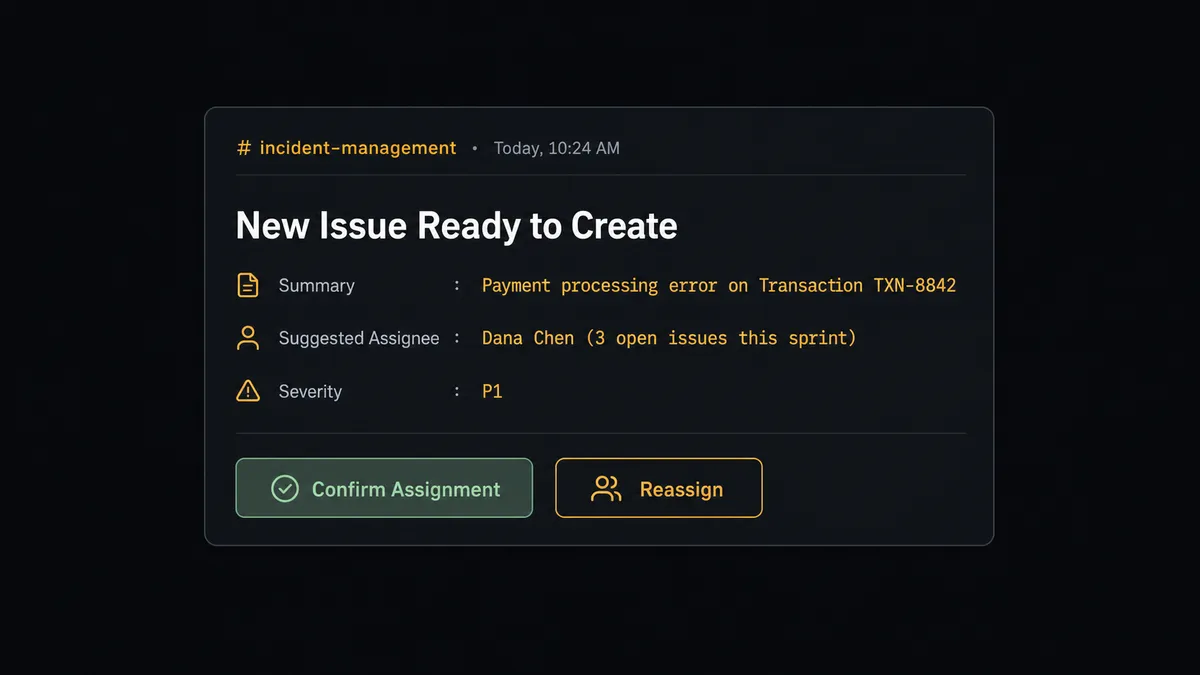
The card lands in the Teams channel where the engineering lead is already working. It shows the issue summary, the suggested assignee, the reason the agent is pausing (three open issues in the sprint), and two buttons: Confirm Assignment and Reassign. The lead taps one. The agent resumes, calls Create Issue with the confirmed owner, calls Add Comment with the workflow execution trace, and replies in the original Teams thread to confirm. The escalation, the decision, the decider’s identity, and the timestamp are all captured in FlowRunner’s audit trail.
This is not a sync tool. The agent knows when to stop and ask.
FlowRunner vs Zapier
Zapier does a lot well. It is fast to set up, has a large template library, and works reliably for straightforward trigger-to-action pairs. If you need to create a Jira ticket every time a message appears in a specific Teams channel, Zapier can do that in ten minutes.
The gaps show up when the work requires judgment.
| Feature | Zapier | FlowRunner |
|---|---|---|
| Basic trigger-action connection | Yes, reliable and fast to configure | Yes, with visual flow builder |
| AI agent that reasons about the data | No native AI reasoning; Zaps follow a fixed sequence | AI Agent node reads context and chooses tools based on the situation |
| Human-in-loop on consequential steps | Not available; Zaps run or fail | Human-in-loop sub-flow callable as an agent tool; workflow pauses for a decision |
| JQL query support for Jira | Limited filter options | Full JQL support via Search Issues |
| Unlimited users on entry tier | Charged per user on most plans | Unlimited users on every tier including Growth at $45 per month |
| BYOK for AI providers | Not available | Bring your own keys for Claude, OpenAI, or any provider |
Before and after
| Category | Before | After |
|---|---|---|
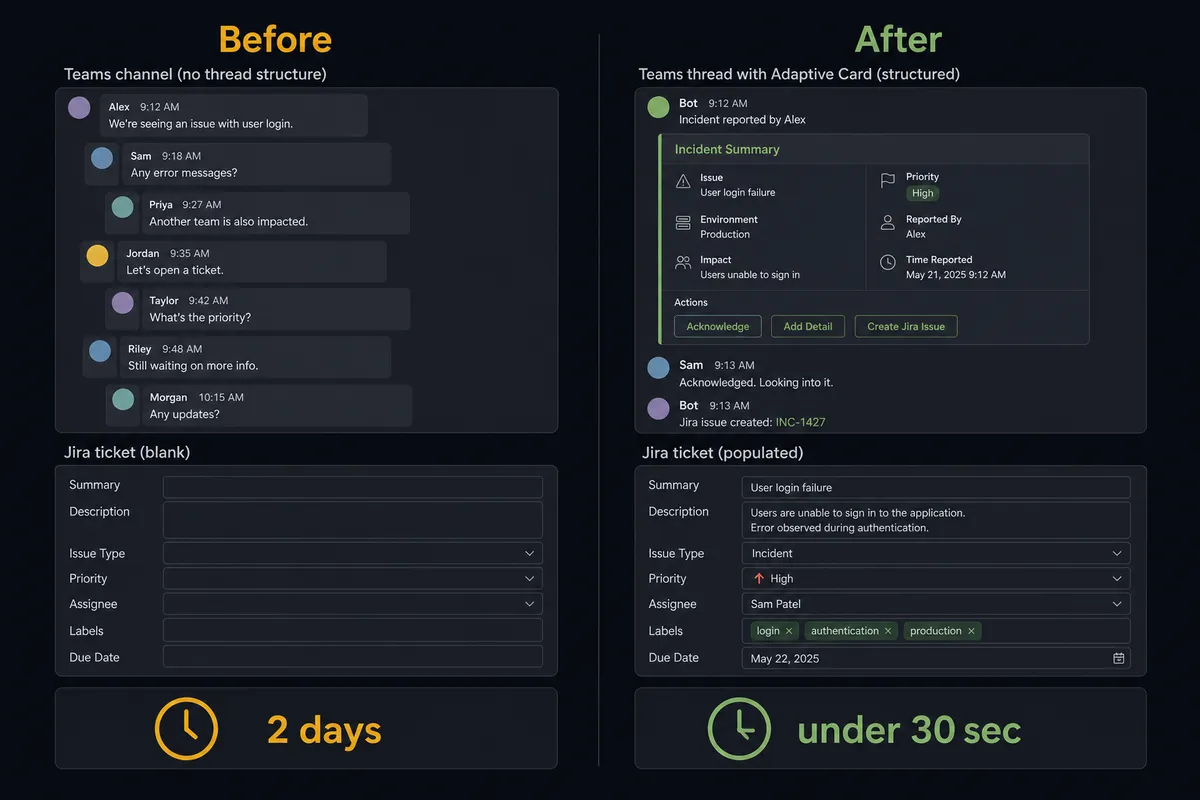
| Ticket creation | Support or ops staff read each Teams message and manually open a Jira ticket | Jira issue created with full context within seconds of the Teams message, before anyone reads it manually |
| Context in the ticket | Engineer receives a ticket with a summary and no supporting data | Customer name, error code, severity, and source message attached automatically at creation |
| Assignment accuracy | On-call rotation is checked manually, or the ticket goes unassigned | Agent matches assignee to rotation data; escalates to a human when workload makes the call non-obvious |
| Decision record | Who approved what and when lives in a Teams thread nobody archives | Every escalation, decision, decider identity, and timestamp logged in the FlowRunner audit trail |
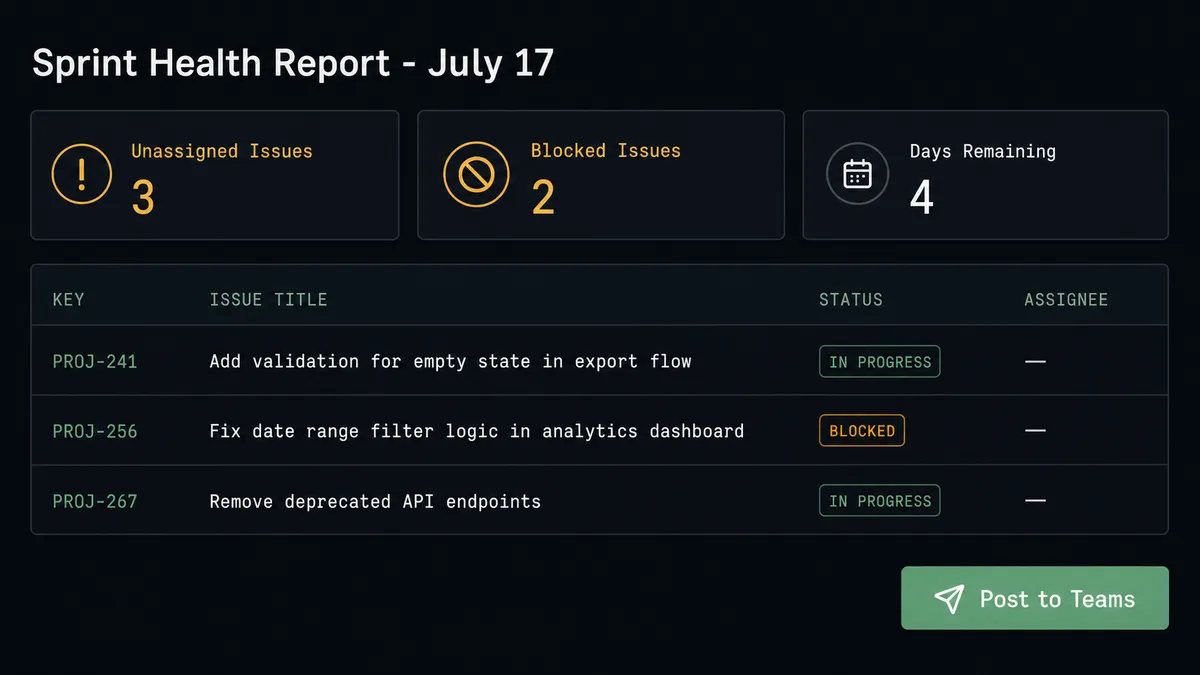
| Sprint visibility | Engineering manager checks Jira manually for unassigned or blocked issues | Agent runs a daily JQL query and posts sprint health to the engineering channel each morning |
What you can build
Exception-to-ticket pipeline for operations teams. When an operations workflow flags an error, the agent creates a Jira bug report using Create Issue with the error code, affected transaction ID, and steps to reproduce. It adds the workflow execution trace via Add Comment. It notifies the on-call engineer via Send Chat Message in Teams with the issue link. Engineering has a complete, assigned ticket before the operations team finishes their next task.
Sprint health monitor posted to Teams daily. Every morning at 9am, the agent executes a JQL query via Search Issues for unassigned or blocked issues in the current sprint. It posts the results to the engineering Teams channel using Send Channel Message. If the sprint has fewer than four days remaining and blocked issues exceed a threshold, the agent invokes a human-in-loop flow to route the sprint health summary directly to the engineering manager for a decision on reprioritization.
Customer escalation tracker with full context. A customer reports a critical issue via email or form. The agent creates a Jira issue in the Support project using Create Issue with severity based on keywords in the message. It attaches supporting context via Add Attachment. It posts a notification to the customer-success Teams channel via Send Channel Message. For P1 issues, the agent routes the assignment decision to the team lead before the ticket is created.
Project channel lifecycle tied to Jira epics. When a new epic is created in Jira, the agent calls Create Channel in Teams to provision a private project channel and sends a kickoff message via Send Channel Message with the epic summary and assigned team. When the epic transitions to Done, a separate flow calls Delete Channel to clean up. The channel exists exactly as long as the work does.
Common questions
Is it free to connect Microsoft Teams and Jira Issues on FlowRunner? FlowRunner offers a $100 credit on the Growth tier, which covers roughly 67 days of real work at no charge. No credit card is required to start. After the credit runs out, Growth is $45 per month.
Can I self-host FlowRunner if my company has data residency requirements? Yes. FlowRunner offers a self-hosted Enterprise option with multi-instance clustering and full compliance features. Contact the team at flowrunner.ai to discuss your deployment requirements.
Does the AI agent need my own OpenAI or Anthropic API key? FlowRunner uses a bring-your-own-key (BYOK) model for AI providers. You connect your own API keys for whichever AI providers you use. FlowRunner does not charge for AI model calls on top of your plan.
What happens when the agent is not sure about an assignment or priority? The agent invokes a human-in-loop flow as a callable tool. It packages the issue summary, suggested assignee, and the reason it is escalating, then posts that context to the right Teams channel or chat. The agent pauses until a person responds, then resumes with the decision as input.
How many users can connect to FlowRunner? Every FlowRunner tier includes unlimited users and unlimited workflows. You are never charged per seat.
Does FlowRunner connect directly to the Microsoft Graph API and Jira’s REST API? Yes. The Microsoft Teams connector is built and verified against the Microsoft Graph API. The Jira Issues connector uses Jira’s REST API with Basic auth via email and API token on Atlassian Cloud.
Getting started
FlowRunner’s $100 credit on the Growth tier covers roughly 67 days of real work. No credit card required. Corporate email sign-up only.
Connect both integrations and build your first flow at flowrunner.ai. Read the integration docs at /integrations/microsoft-teams and /integrations/jira-issues.
If you want to walk through your specific exception workflows before you build, book a 30-minute intro at calendly.com/flowrunner/intro. The team can show you a working agent for your exact use case.