How to Connect Telegram with Google Sheets (With or Without an AI Agent)
Use FlowRunner to connect Telegram messages to Google Sheets rows automatically, with an AI agent that validates data and pauses for a human before writing bad records into systems of record.
How do you connect Telegram to Google Sheets?
You connect Telegram to Google Sheets in FlowRunner by pairing the Telegram On New Message trigger with the Google Sheets Add Row or Update Row action: when a message arrives in a monitored Telegram chat, FlowRunner writes the relevant data as a new row in your sheet. FlowRunner is a visual AI-agent orchestration platform where automations run autonomously and pause for human judgment on the steps that carry real consequence. The same connection can run as an AI agent that reads each message, validates the data, and invokes a human review before writing records that fail inspection.
The problem operations teams run into
Field teams, warehouse staff, and external contacts send information through Telegram because it is where they already communicate. Supervisors drop order updates in a group chat. Field agents share scanned documents. Vendors confirm shipment details via message. All of it requires someone to read the message, extract the relevant data, and paste it into a spreadsheet manually. That person is usually the ops manager, and the work happens at the end of their day, if it happens at all.
The spreadsheet itself compounds the problem. Rows kept by hand go stale. Updates that arrive as Telegram messages on a Friday evening sit unrecorded until Monday. When something falls through the cracks, there is no audit trail showing when the message arrived, who read it, or why the row never got added. The team spends the next morning reconstructing what happened instead of doing the day’s work.
How it works: the connection
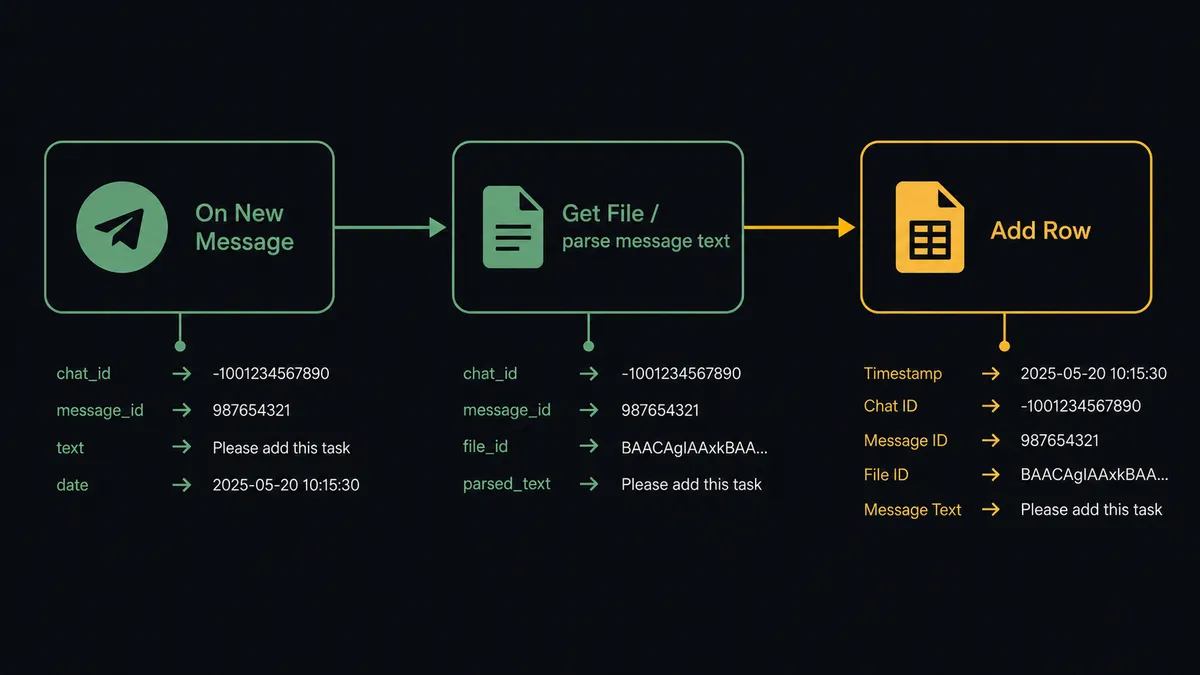
The basic Telegram-to-Google Sheets connection runs in three steps. The On New Message trigger fires when a message lands in the monitored chat. FlowRunner reads the message text or retrieves the attached file using Get File. Then it calls Add Row on the target sheet, mapping the message fields to the correct columns.
For the reverse direction, the same pattern applies. When a new row lands in Google Sheets via On New Row, FlowRunner calls Send Message in Telegram to alert the relevant group. Row data maps to the message body. The receiving supervisor sees the update in the channel they are already watching, without opening a browser or logging into another system.
Both flows run in minutes with the visual builder. No code. The trigger, the action, and the field mapping are all point-and-click. For teams that need real-time data in Sheets without a manual copy-paste step between systems, this is the baseline.
Can an AI agent run it? (and why a human stays in the loop)
The plain connection handles the easy case. An AI agent handles the rest. The difference is judgment.
When a field team member drops a scanned document in the Telegram chat, a plain automation retrieves the file and writes a row. If the document is illegible, a required field is missing, or the order number does not match anything in the sheet, the automation writes a bad row anyway. Someone finds the error later, and the downstream system it fed may already have it.
An agent does not work that way. It reads the message, calls Get File to retrieve the document, extracts the relevant fields, and then checks the data before writing anything. It calls Find Row to see if a matching record already exists. It validates that required columns have values. If the data looks clean, it calls Add Row and confirms back in Telegram with Send Message: “Scan received. 14 line items added to the receiving sheet.”
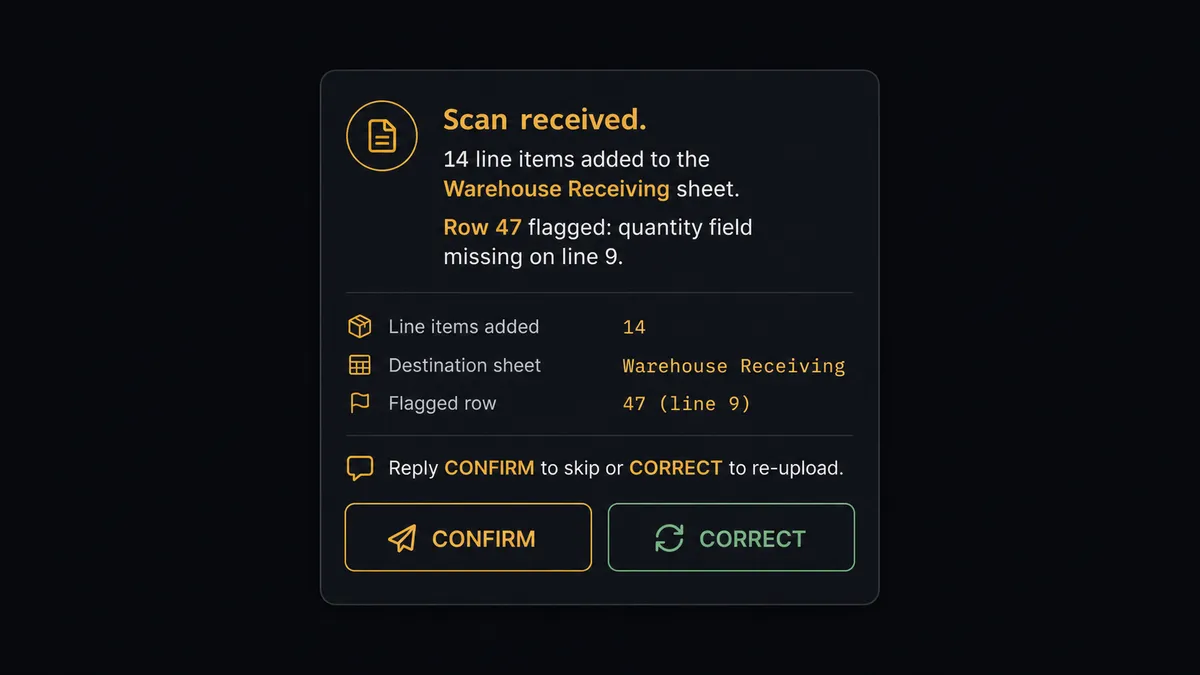
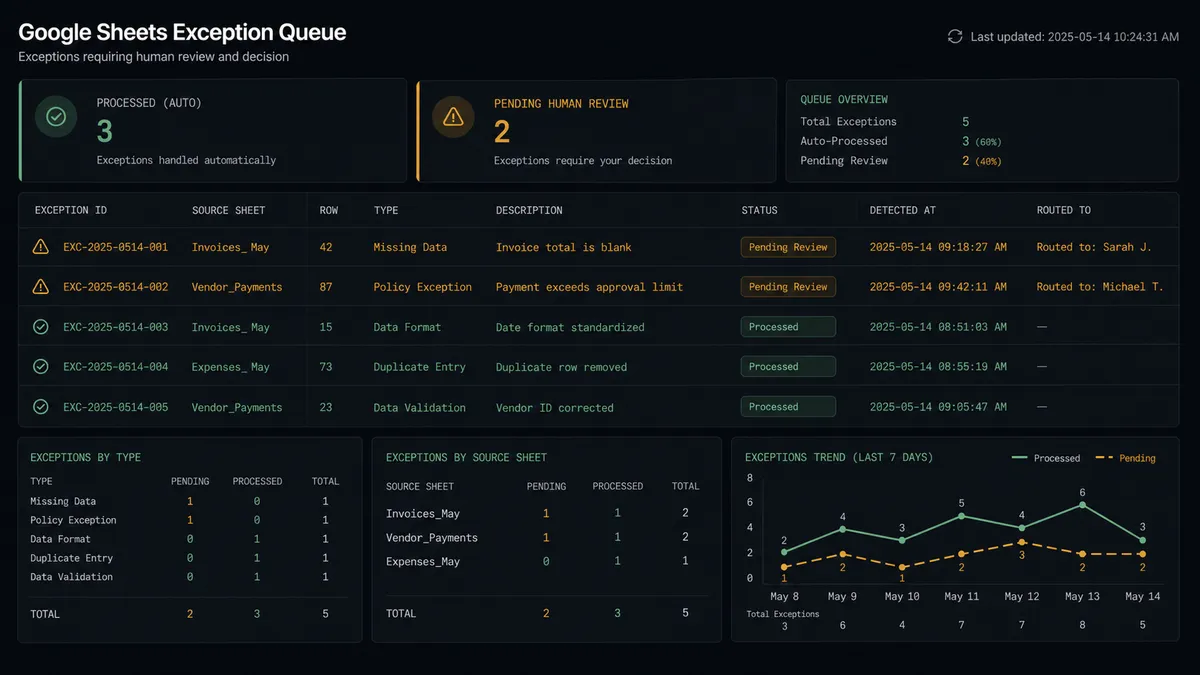
If something looks wrong, the agent does not make a judgment call alone. This is where the digital andon cord applies. The agent stops the line. It marks the row in Sheets with Format Row to highlight it amber, routes the exception to the operations lead via Slack with full context (“Row 47 is missing a required quantity value in column D. Correct the row and I will reprocess it, or tell me to skip it.”), and waits. The operations lead fixes the row or approves the skip. The agent reprocesses on response. The decision, the decider, and the timestamp all go into the audit trail.
This is not a threshold rule. The agent is not escalating because the number exceeded a limit. It is escalating because the data does not make sense for this record, in this context, compared to what it knows about this supplier and this sheet structure. A $3,000 order from a new vendor gets the same scrutiny as a duplicate row from a vendor with months of clean history. The agent evaluates both and routes exceptions when the context warrants it, not when a number crosses a line.
FlowRunner vs Zapier
Zapier is the tool most non-technical teams reach for first when connecting Telegram and Google Sheets. It works well for straightforward triggers and actions, and its library of pre-built Zaps covers the basic “message arrives, row appears” use case quickly. If the volume is low and the data is always clean, Zapier does the job.
The real differences appear when the data is not clean, the team grows, or compliance becomes a question.
| Feature | Zapier | FlowRunner |
|---|---|---|
| Human-in-loop orchestration | Not available; conditional branches are hardcoded rules | Native: the agent invokes human oversight as a callable tool, based on context not thresholds |
| AI agent with real decision logic | Zapier AI is a content-generation step, not an autonomous decision-maker | AI Agent nodes read data, reason across it, pick tools, and adapt to each record |
| Users per plan | Priced per user on team plans | Unlimited users on every tier |
| BYOK for AI providers | Not available; AI costs are billed through Zapier | Bring your own OpenAI, Anthropic, or other provider key |
| Audit trail on human decisions | No record of who approved what or when | Every human decision captured: decider identity, timestamp, input context, outcome |
| Self-host option | Cloud only | Community Edition is free; Enterprise self-hosted available |
The honest read: Zapier’s strength is speed to first automation. FlowRunner’s strength is what happens at the exceptions. If your Telegram-to-Sheets connection handles clean data at low volume, Zapier is a fast start. If any row in that sheet goes downstream into a system of record, inventory, billing, a CRM, you need an agent that knows which rows to hold.
Before and after
| Category | Before | After |
|---|---|---|
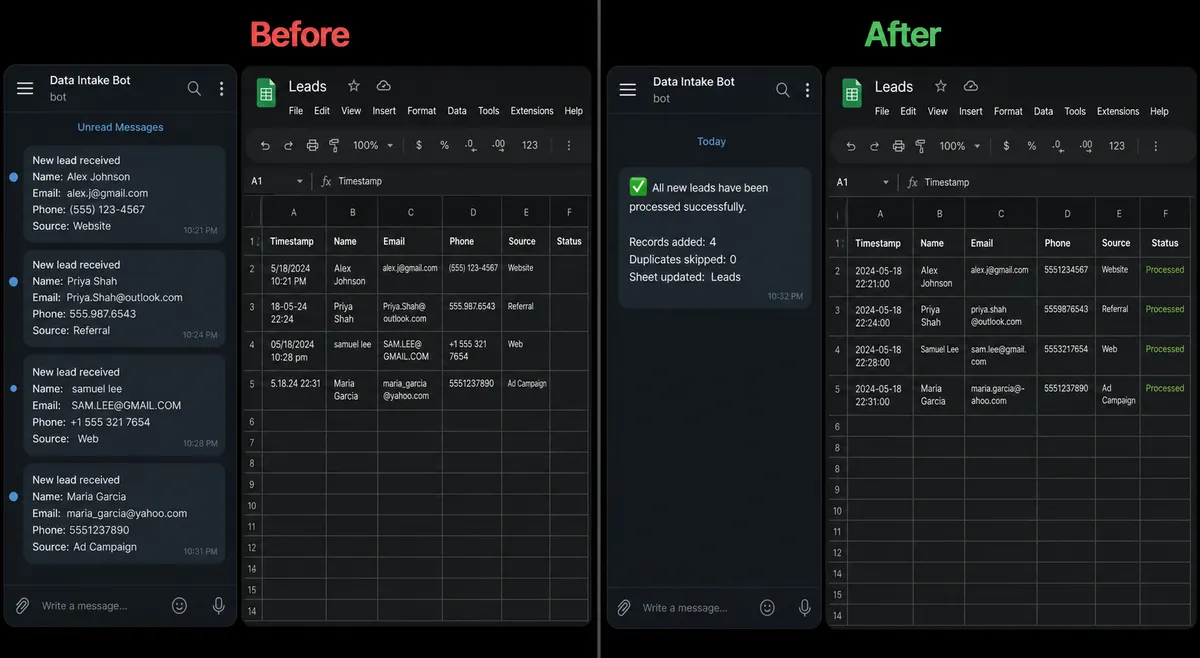
| Field data capture | Field team sends Telegram messages; ops manager manually pastes data into Sheets at end of day | On New Message fires; agent writes rows to Sheets in real time as messages arrive |
| Document intake | Scanned documents emailed; someone monitors inbox and extracts data by hand | Agent calls Get File, extracts the data, and writes confirmed rows; field team gets a Telegram confirmation |
| Bad rows | Errors land in the sheet and propagate downstream before anyone notices | Agent holds bad rows, flags them in Sheets with Format Row, and routes them to the owner before they reach connected systems |
| Status visibility | Sheet reflects what someone last entered; field team does not know if their message was received | Agent sends Send Message back to the Telegram chat confirming each processed record |
| Human decisions | Verbal or ad hoc; no record of who decided what | Every escalation captured with decider, timestamp, and context in the FlowRunner audit trail |
What you can build
Field document intake pipeline. A field agent drops a scan in a Telegram group. On New Message fires, the agent retrieves the document with Get File, extracts the data, and calls Add Row to log it in Sheets. It sends Send Message back with a row count confirmation. Exceptions go to the ops lead before anything reaches the system of record.
Warehouse receiving alert and log. When a receiving supervisor posts a delivery confirmation in Telegram, the agent parses the message, finds or creates the matching row in Sheets with Find Row and Update Row, and marks the shipment received. It then calls Send Message to notify the purchasing team in a separate Telegram group.
Row-triggered Telegram status updates. On New or Updated Row fires when a Google Sheet tracking project statuses changes. The agent reads the updated row, formats a status message, and calls Send Message to the responsible team’s Telegram group. Teams stay informed without opening the sheet.
Scheduled report delivery. On a schedule, the agent calls Export Sheet to generate a PDF or Excel file of the current data and passes the returned URL to Send Document in Telegram. The supervisor receives the daily report as a file in the app they are already using. No one opens a browser or downloads a file by hand.
Exception queue with human routing. New rows in a validation sheet trigger the agent. It calls Find Row to check for required fields, calls Get Cell to confirm values are in range, and holds rows that fail. It calls Format Row to flag each bad row in amber, then routes the exception to the owner via Slack or email. On correction, the agent reprocesses the row automatically.
Common questions
Is it free to connect Telegram and Google Sheets on FlowRunner? FlowRunner starts with a $100 credit on the Growth tier, which covers roughly 67 days of real usage. No credit card is required to start. After that, Growth is $45 per month with 12,000 workflow executions included.
Can I self-host the Telegram and Google Sheets integration? Yes. FlowRunner offers a self-hosted Community Edition at no cost. Enterprise self-hosted plans add multi-instance clustering, full audit trails, and RBAC for teams that need on-premises deployment.
Does the AI agent need my own API key? FlowRunner uses a BYOK (Bring Your Own Keys) model. You connect your own AI provider key. The platform does not bill for AI usage separately from your provider contract.
What happens when the agent is not sure how to handle a row? The agent holds the row, marks it in the sheet, and routes it to the right person via Slack, email, or WhatsApp with full context. The person corrects or approves it, and the agent reprocesses. Nothing bad reaches your systems of record without a human sign-off.
Does FlowRunner limit the number of users or workflows on a plan? No. Every FlowRunner tier includes unlimited users and unlimited workflows. Pricing scales on execution volume, not team size.
Can the agent write to Google Sheets and send a Telegram notification in the same flow? Yes. A single flow can append a row in Google Sheets, then send a Send Message to a Telegram group with the confirmation. The agent coordinates both actions in sequence without separate automations.
Getting started
Start with a $100 credit on FlowRunner’s Growth tier, about 67 days of real work at no cost. No credit card required. You will need a corporate email to register.
The Telegram integration details and available actions are at /integrations/telegram. The Google Sheets connector with its full action library is at /integrations/google-sheets.
Start building at flowrunner.ai or book a 30-minute walkthrough at calendly.com/flowrunner/intro to see the agent decision logic working on your actual Telegram-to-Sheets use case.