How to Connect Webflow with Airtable (With or Without an AI Agent)
Connect Webflow and Airtable so that form submissions, order events, and CMS content changes flow automatically into Airtable records, optionally as an AI agent that pauses for human sign-off before publishing.
How do you connect Webflow to Airtable?
You connect Webflow to Airtable by building a FlowRunner workflow where the Webflow On Form Submit or On New Order trigger fires and the Airtable Create Record action writes the data into a table of your choice. FlowRunner is a visual AI-agent orchestration platform where automations run autonomously and pause for human judgment on the steps that carry real consequence. That same connection can run as an AI agent that evaluates each submission or order, decides whether it needs review, and invokes a human-in-loop step before taking consequential downstream action, such as publishing a site or routing a high-value order.
The problem with managing Webflow data manually
Right now, Webflow form submissions land in a shared email inbox. Someone on the team reads each one, decides what to do, manually creates a record in Airtable or another tracker, and eventually follows up. During busy periods, submissions fall through the cracks. The Airtable table is perpetually a day or two behind. When a manager asks how many inquiries came in this week and what happened to each one, the answer requires someone to go dig through emails.
The same gap exists on the order side. An e-commerce team using Webflow’s storefront tracks fulfillment, refunds, and customer history in Airtable because no single system holds everything. Orders come in, someone transcribes the relevant data by hand, and the table drifts out of sync whenever the team is stretched. Exceptions, the orders that need attention because something is wrong or unusual, get buried in the noise. They surface late, or not at all.
How it works: the Webflow-to-Airtable connection
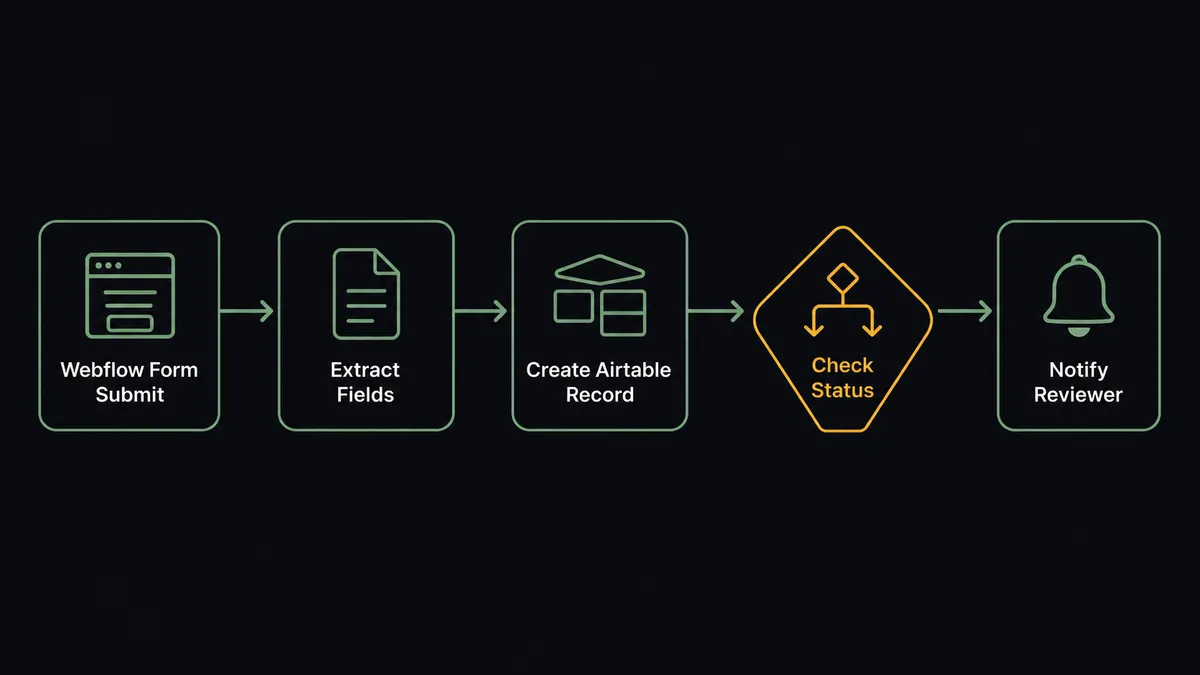
When a visitor submits a Webflow contact form, On Form Submit fires immediately. The agent extracts the submission data, including name, company, email, and message, and calls Create Record in the Airtable table designated for leads or inquiries. The record is live in Airtable within seconds of the form submission, fully attributed and ready for follow-up.
For e-commerce workflows, On New Order fires the moment a purchase is placed. The agent maps the customer information, line items, order total, and shipping address into a Create Record or Create or Update Record call. Create or Update Record is particularly useful here because it checks for an existing customer record first, preventing duplicate rows when a returning customer places a second order.
When an order status changes, On Order Updated fires. The agent calls Update Record to change the status field in Airtable, moving the row from Pending to Fulfilled or Refunded. The Airtable table reflects order state in real time without anyone touching it.
For content operations, when the team adds a record in Airtable with status Ready for Publishing, the On New or Updated Record trigger fires on the Airtable side, the agent retrieves the content, calls Create Collection Item to build the CMS entry in Webflow, and then calls Publish Site to make it live. The editorial workflow lives in Airtable. The publishing happens automatically.
The full set of Webflow actions available to the agent includes: Create Collection Item, Update Collection Item, Delete Collection Item, Get Collection Items, Publish Site, Get Site Details, Get Form Submissions, Create Collection, Delete Collection, Create Collection Field, Update Collection Field, Delete Collection Field, Get Collection Schema Info, Get Site Domains, and Delete Form Submission.
On the Airtable side, the agent’s tools include: Create Record, Create Records, Create or Update Record, Update Record, Find Record, Find Many Records, Delete Record, Delete Records, Create Comment, Get Latest Comments, Update Comment, Delete Comment, Create Base, Create Table, Update Table, Get Base Schema, and Get Bases.
Can an AI agent run it? (And why a human stays in the loop)
A simple Webflow-to-Airtable sync works well for routine data. The step up to an AI agent is for the moments where the right action is not obvious.
Consider a Webflow order that comes in at three times the average order value from a customer account that was created 20 minutes ago. A rule-based automation processes it like any other order. An AI agent reads the data and evaluates context. The order amount, the account age, the payment method, the shipping address. It sees the combination and decides this is not a case to process automatically.
The agent invokes the human-in-loop flow it has been given as a tool. It does not wait for a threshold to trigger. It makes a judgment call the way a senior operations manager would. The flow sends a Slack message to the fraud review queue: “New order flagged for review. Order total: $4,250. Account created: 22 minutes ago. Payment method: prepaid card. Shipping to an address with no prior order history. Approve fulfillment or place on hold?”
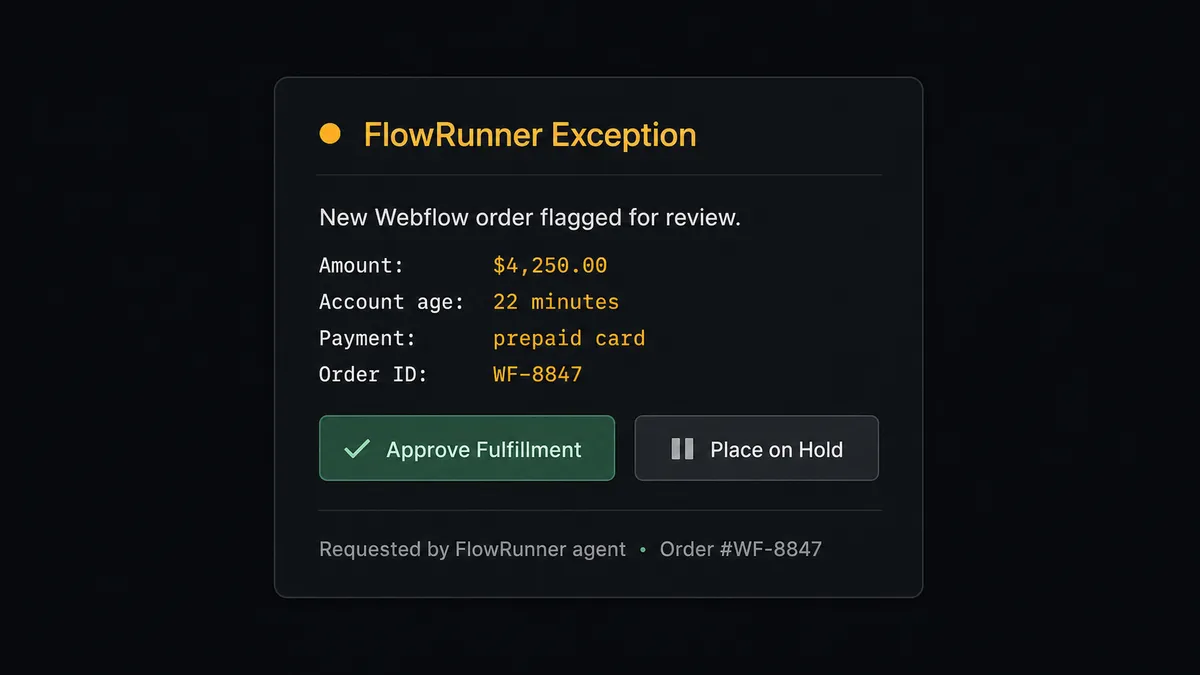
The reviewer sees the full context in one message. They click a button. The agent resumes with the decision as input. If approved, it calls Create Record in Airtable, triggers fulfillment, and adds a Create Comment to the Airtable record logging who approved it and when. If placed on hold, the record is flagged and the agent adds a comment explaining the reason. The decision, the approver’s identity, and the timestamp all live in the audit trail.
This is not a sync tool. The agent knows when to stop and ask. Prospects who have worked with Toyota’s manufacturing processes call it a “digital andon cord”: the line stops the moment AI hits a situation that needs a human judgment call.
For content operations, the same principle applies. After bulk-updating a collection in Webflow, the agent does not publish automatically. It routes a review to the marketing manager: “I have updated 14 collection items. The site is ready to publish. Preview at [staging URL]. Approve publish or request changes?” The Publish Site action only fires after explicit approval.
FlowRunner vs Zapier for Webflow and Airtable
Zapier is the most common tool non-technical teams reach for when connecting Webflow and Airtable. It is genuinely good at simple, single-step automations with a large library of pre-built connectors and a polished setup experience. If the workflow is “form submitted, create record,” Zapier handles that well.
The differences become clear when the workflow needs judgment.
| Capability | Zapier | FlowRunner |
|---|---|---|
| Basic Webflow trigger to Airtable action | Yes, with a polished setup UI | Yes, with the same visual builder |
| AI agent that reasons about each record | No; automation steps are fixed sequences | Yes; the agent picks tools based on context |
| Human-in-loop as a callable agent tool | Not available; approval steps are separate Zaps | Native; the agent invokes a human flow the same way it calls any action |
| Publish Site with human sign-off built in | Manual workaround with multi-step Zaps | Single workflow: update, review, publish |
| Unlimited users on every tier | No; Zapier charges per seat at higher tiers | Yes; all FlowRunner tiers include unlimited users |
| BYOK for AI actions | Not available | Yes; bring your own OpenAI, Anthropic, or other key |
| Audit trail with approver identity and timestamps | Not available | Built in; every human decision is logged |
Zapier’s strength is speed of setup for simple connections. FlowRunner’s strength is when the connection needs to think.
Before and after
| Category | Before | After |
|---|---|---|
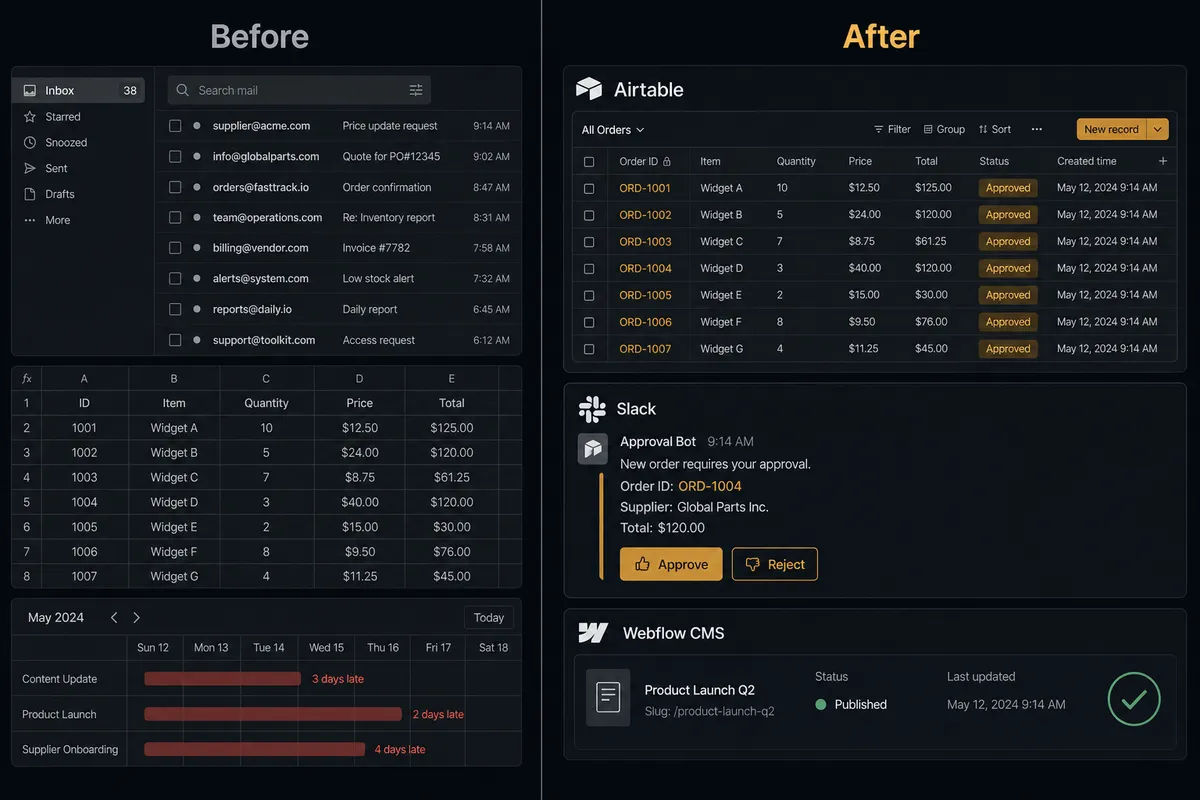
| Form-to-record lag | Submissions sit in a shared inbox until someone processes them manually, often a day or more | On Form Submit fires; Airtable record created within seconds of submission |
| Order data accuracy | Customer and line-item data transcribed by hand into Airtable; errors accumulate over time | On New Order triggers Create or Update Record; data mapped automatically, no transcription |
| Exception handling | High-value or unusual orders processed the same as routine ones; exceptions surface late | Agent evaluates each order, flags anomalies, invokes human review before processing |
| Content publishing | Marketing staff log into Webflow manually to create CMS items and publish | On New or Updated Record fires in Airtable; agent creates the CMS item and awaits publish approval |
| Audit visibility | No record of who processed what or when | Every action, every human decision, every timestamp logged in the audit trail |
What you can build
Lead intake with enrichment and Airtable logging. On Form Submit fires from a Webflow contact form. The agent extracts submission data, creates a record in Airtable with name, company, email, and inquiry type, and adds a comment with the source URL. The sales team manages follow-up in Airtable without touching Webflow.
Order anomaly detection with human review. On New Order fires. The agent evaluates the order against context: account age, order size, payment method, prior history. If the combination is unusual, it invokes the human-in-loop flow, packages the relevant data into a Slack message, and waits. Normal orders proceed automatically.
CMS content calendar automation. The marketing team marks records Ready for Publishing in an Airtable content calendar. On New or Updated Record fires. The agent calls Create Collection Item in the appropriate Webflow collection, maps the content fields, and calls Publish Site after a reviewer approves via Slack. The team’s editorial process stays in Airtable. The publish is automatic.
Order fulfillment status sync. On Order Updated fires when Webflow marks an order fulfilled or refunded. The agent calls Update Record in Airtable to move the corresponding row to the correct status. The ops team’s Airtable tracker reflects Webflow order state without manual updates.
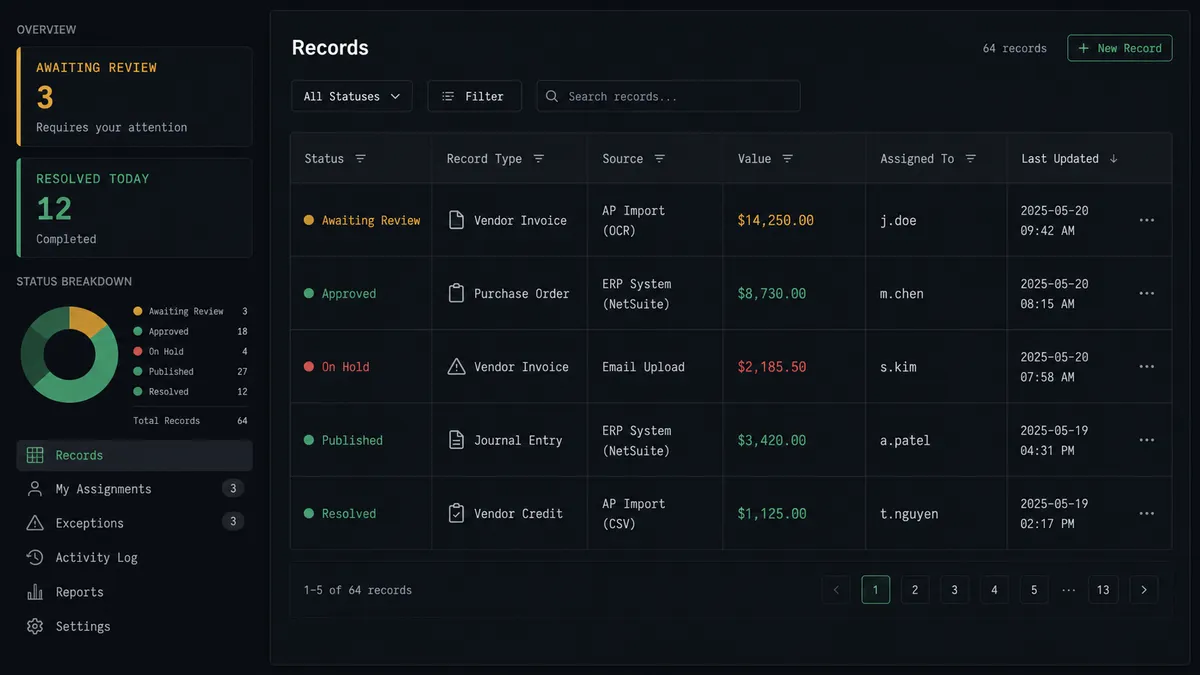
Exception queue with structured resolution. When an order or form submission fails validation, the agent creates a record in an Airtable Exceptions table with the issue type, source data, and recommended action. The manager reviews the queue each morning and marks records Resolved. On New or Updated Record fires, and the agent applies the resolution to the originating workflow step.
Common questions
Is it free to connect Webflow and Airtable on FlowRunner? FlowRunner offers a $100 credit on the Growth tier, which covers roughly 67 days of real usage at no cost. No credit card is required to start. After the credit, Growth is $45 per month.
Can I self-host FlowRunner? Yes. FlowRunner offers a self-hosted Community Edition at no cost for single-instance deployments. The self-hosted Enterprise tier supports multi-instance clustering and the full compliance suite.
Does the agent need my own AI provider key? Yes. FlowRunner uses a Bring Your Own Key model, so you connect your own OpenAI, Anthropic, or other provider account. Your data stays in your AI provider relationship, not FlowRunner’s.
What happens when the agent is not sure what to do? The agent invokes a human-in-loop flow as a callable tool. It pauses execution, sends the responsible person a Slack message or email with full context and options, and resumes only after they respond. The decision, the decider’s identity, and the timestamp are logged in the audit trail.
Does FlowRunner charge per workflow execution? FlowRunner pricing is based on execution volume per month, not per individual API call or action step. Growth at $45/month includes 12,000 executions. All tiers include unlimited users and unlimited workflows.
Can I connect more than two systems in the same workflow? Yes. A single FlowRunner workflow can span any number of integrations. A Webflow form submission can simultaneously create an Airtable record, notify a Slack channel, create a CRM contact, and route to an email sequence, all from one flow.
Getting started
Start with the $100 credit on Growth, which covers approximately 67 days of real usage. No credit card required. Corporate email required.
Connect both integrations in the FlowRunner builder: Webflow at /integrations/webflow and Airtable at /integrations/airtable. Choose the trigger that matches your workflow, map the data fields, add the human-in-loop step for the decisions that carry weight, and activate.
Start building at flowrunner.ai. If you want to walk through the workflow design with the team first, book a 30-minute intro at calendly.com/flowrunner/intro.