How to Connect WhatsApp Business with HubSpot (With or Without an AI Agent)
Connect WhatsApp Business to HubSpot so inbound messages create contacts and deals automatically, with an AI agent that pauses for human judgment on ambiguous records or high-stakes actions.
How do you connect WhatsApp Business to HubSpot?
You connect WhatsApp Business to HubSpot by building a FlowRunner workflow where an inbound WhatsApp message triggers a Get Contact by Email lookup, then a Create Contact, Associate Objects, and Create Deal sequence in HubSpot. FlowRunner is a visual AI-agent orchestration platform where automations run autonomously and pause for human judgment on the steps that carry real consequence. The same connection can run as an AI agent that reads incoming messages, checks existing records, and invokes a human-in-loop flow via WhatsApp when it finds a duplicate or a deal that needs a sales rep’s judgment.
The problem it solves
Sales and operations teams handling inbound WhatsApp inquiries run into the same wall. A prospect messages your business number. Someone on the team sees it, manually creates a HubSpot contact, and tries to remember whether that person already exists in the CRM. If no one catches it in time, the contact either gets duplicated or falls through the cracks entirely. The deal never gets created. The conversation goes nowhere.
The operations side is just as fragile. When a lead comes in over WhatsApp and needs to be routed to the right sales rep, there is usually a spreadsheet involved. Someone checks territory rules, finds the rep’s Slack handle, and fires off a message. The rep may see it immediately or may not. By the time the lead is working its way through a real pipeline, the inbound signal is cold. The manual steps are not just slow. They are where leads die.
How it works: the connection
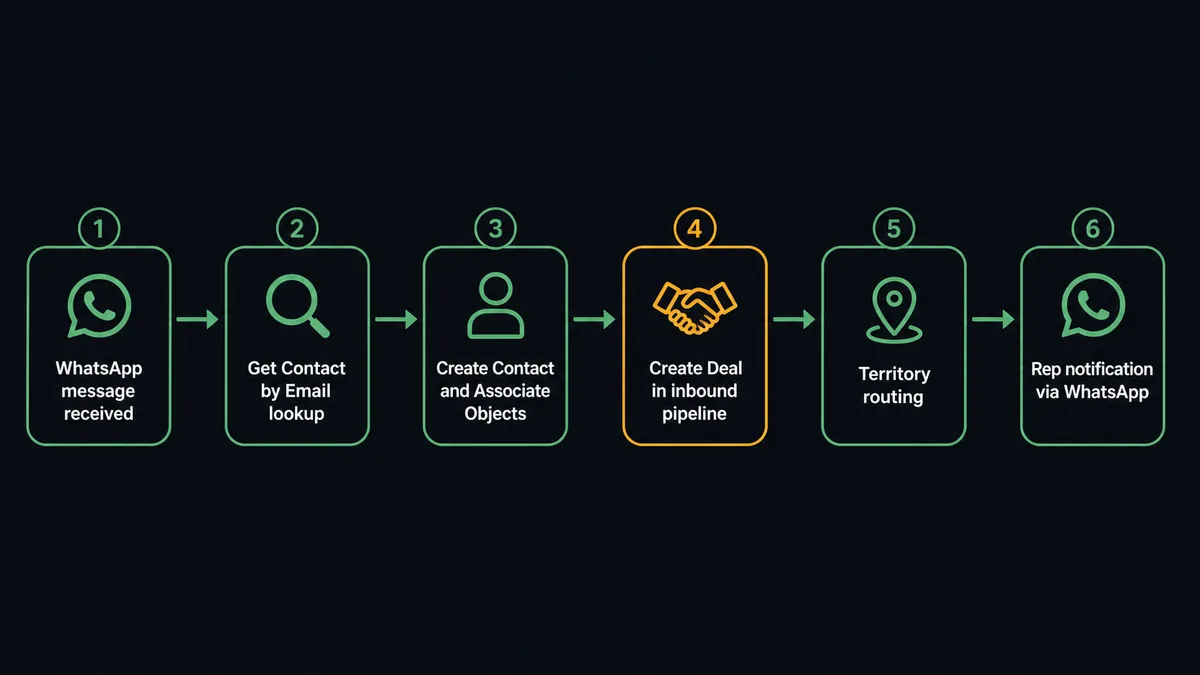
The workflow starts with an inbound WhatsApp message routed through your Meta Business Platform setup. FlowRunner captures the sender’s phone number and message body.
The agent’s first action is Get Contact by Email, using an email collected from the conversation or matched via phone number lookup. If a record exists, the agent proceeds to Update Contact to log the interaction. If no record exists, the agent calls Create Contact with the available data, then Create Company if the domain suggests an account match, then Associate Objects to link the contact to the company record.
Once the contact record is confirmed, the agent calls Create Deal in HubSpot, sets the pipeline stage to Lead, and associates the deal with the contact. It then applies territory rules to assign the deal to the correct rep and sends the rep a WhatsApp notification or Slack message with the full context.
The entire sequence, from inbound message to deal created and rep notified, runs without a human touching any system.
Can an AI agent run it? (and why a human stays in the loop)
A plain workflow connects the two systems. An AI agent reads the data and decides what to do.
When a WhatsApp message arrives from a contact the agent has never seen, the decision is clear: create the record, open the deal, route the lead. But not every message is clean. Some senders match two contacts in HubSpot with the same phone number but different emails. Some messages come from a known customer who already has an open deal, and the agent needs to decide whether this is a new opportunity or an update to the existing one. Some inquiries come from regions where the territory rules have a gray area.
For those cases, the agent does not guess. It invokes a human-in-loop flow as a callable tool.
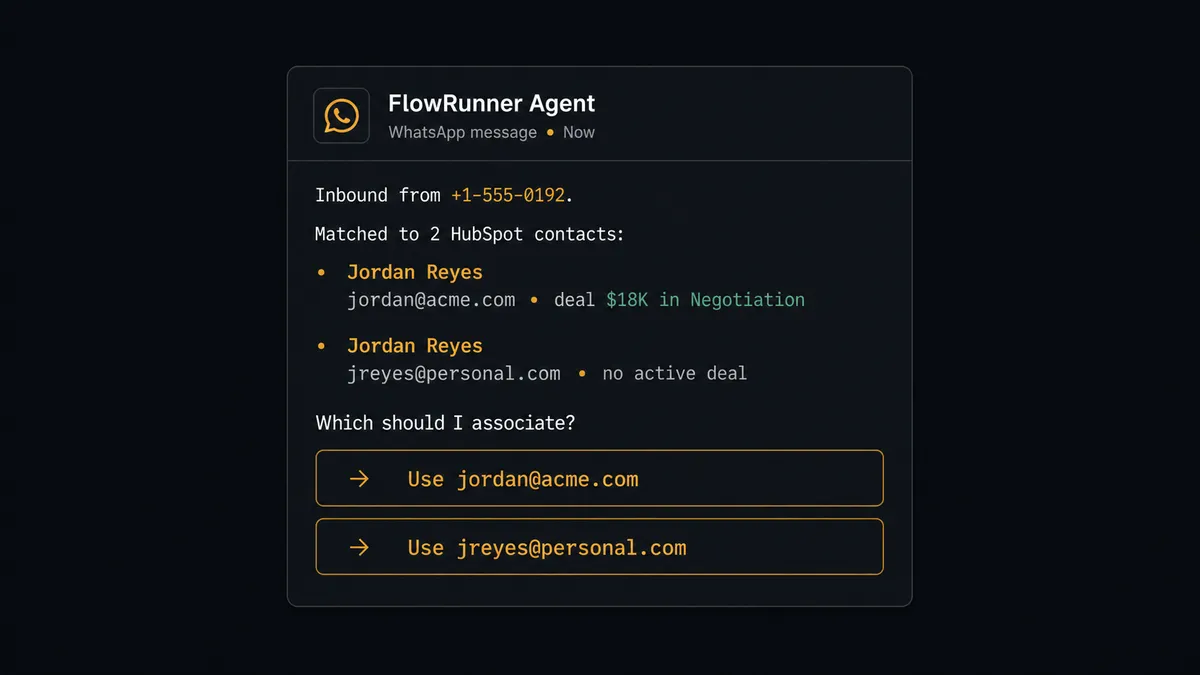
Here is how that looks in practice. An inbound WhatsApp message arrives from a number matched to two different HubSpot contacts. The agent identifies the conflict, packages the full context: both contact records, their associated deals, the incoming message body, and the timestamp. It sends a WhatsApp message to the CRM admin: “Inbound from +1-555-0192. Matched to two contacts: Jordan Reyes ([email protected], deal: $18K in Negotiation) and Jordan Reyes ([email protected], no active deal). Which should I associate this with?” The admin replies in WhatsApp. The agent reads the reply, associates the contact correctly, updates the deal, and logs the decision with the admin’s identity and timestamp.
This is not a threshold. The agent does not escalate because the deal value is above some number. It escalates because two records are equally plausible and choosing incorrectly would corrupt the CRM. That judgment call, made in context, is the upgrade.
FlowRunner vs Zapier
If you’re evaluating tools to connect WhatsApp Business and HubSpot, Zapier is the most common starting point for non-technical teams. That’s fair. Zapier has a polished setup experience, thousands of tutorials, and a connector library that covers almost everything. For straightforward trigger-action flows, it works.
The differences show up at the edges.
| Feature | Zapier | FlowRunner |
|---|---|---|
| Human-in-loop on exceptions | Requires external tool; not native | Native callable tool; agent decides when to invoke |
| AI agent with reasoning | Multi-step Zaps; no agent reasoning layer | AI agent reads data, picks tools, acts on context |
| Duplicate detection | Manual filter steps you configure | Agent checks Get Contact by Email and routes ambiguity |
| Users per plan | Per-seat pricing on most plans | Unlimited users on every tier |
| BYOK for AI model | Not available | Yes; you connect your own provider key |
| WhatsApp inbound handling | Limited; outbound-focused | Full inbound/outbound with reply-based resumption |
Zapier is the right choice if your flow is simple, your volume is low, and you never need a human in the decision. FlowRunner is the right choice if the workflow involves judgment, exceptions, or a team that needs to act on what the agent finds.
Before and after
| Category | Before | After |
|---|---|---|
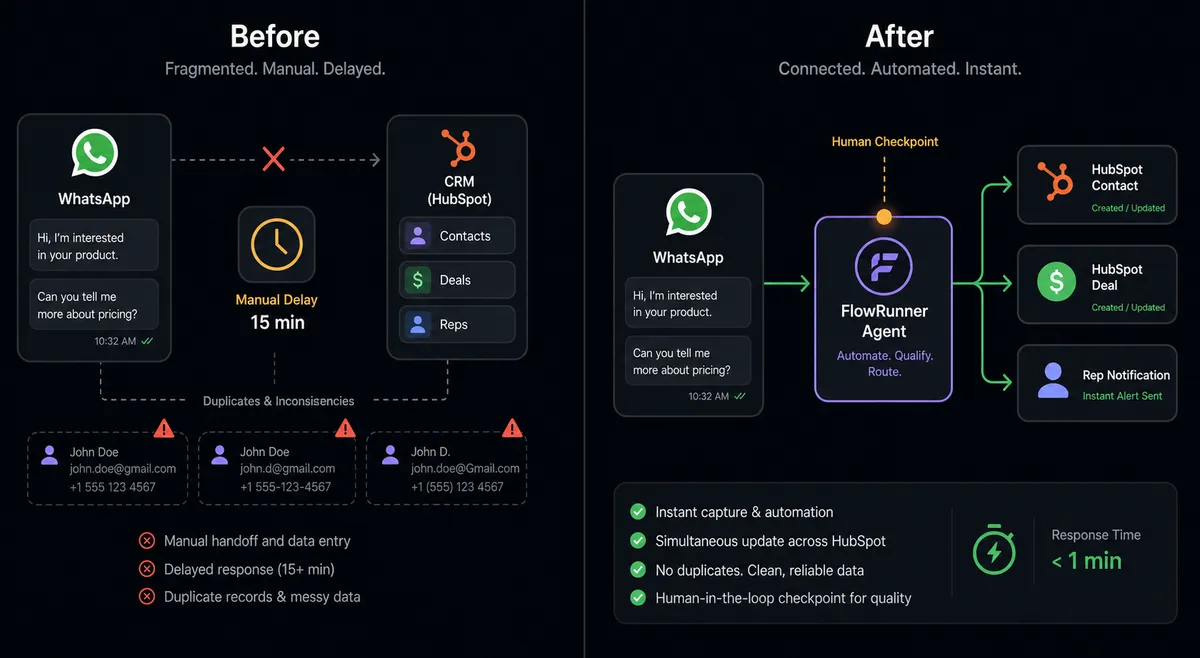
| Time to create a HubSpot contact from a WhatsApp lead | 5-15 minutes, manual, depends on who’s watching | Under 30 seconds, automatic on every inbound message |
| Duplicate contacts in HubSpot | Created routinely when different team members respond to the same contact | Agent runs Get Contact by Email before every create; duplicates paused for admin review |
| Deal creation from inbound WhatsApp | Only happens if a rep remembers to open HubSpot | Created automatically with lifecycle stage, pipeline, and rep assignment |
| Exceptions handled | Escalated by Slack message or email, no context included | Agent packages full context and delivers via WhatsApp; decision logged in audit trail |
| Rep notification speed | Minutes to hours depending on who sees the inbound message | Immediate; rep receives WhatsApp or Slack message with deal link and contact context |
What you can build
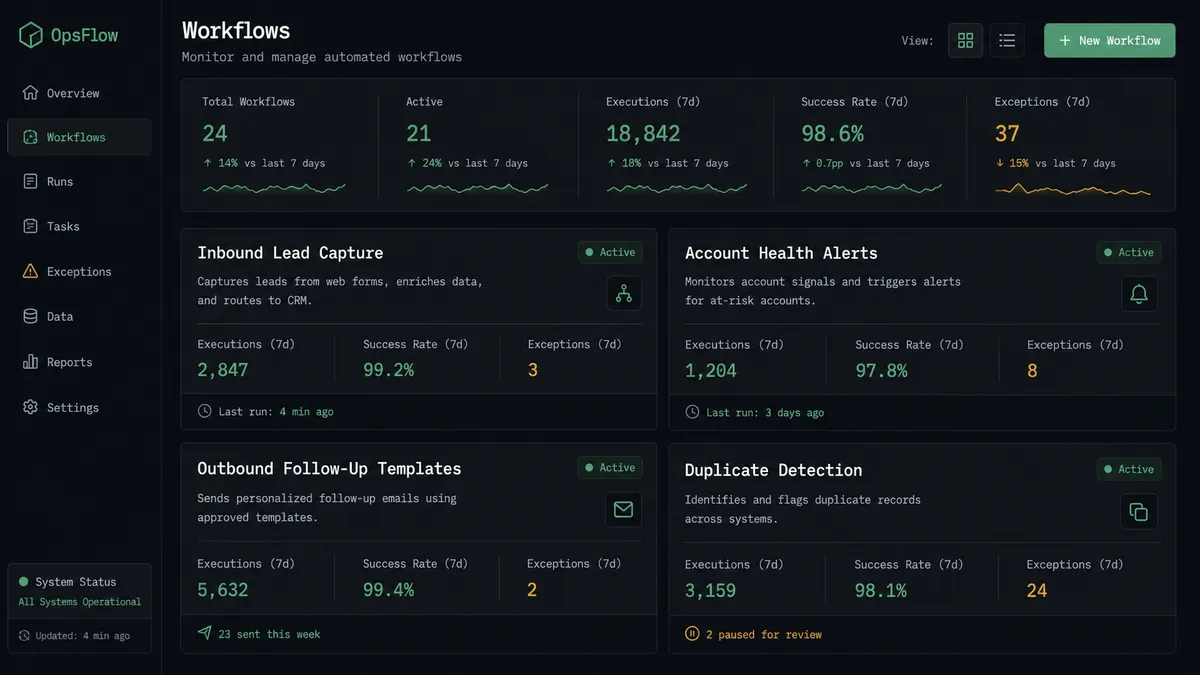
Inbound lead capture and deal creation. Every WhatsApp inquiry from a new contact triggers Create Contact, Associate Objects with the matched company, and Create Deal in the inbound pipeline. The rep is notified in under 30 seconds. No spreadsheet, no manual entry.
WhatsApp-to-HubSpot account health alerts. The agent queries HubSpot weekly for deals inactive for 14 days. For each stalled deal, it sends the owner a WhatsApp message with the deal name, stage, and last activity date. The owner replies to confirm they’re still active or flags for manager review.
Template-based outbound follow-up. When a deal moves to the Proposal stage in HubSpot, the agent sends a pre-approved WhatsApp template message to the primary contact confirming next steps. The template delivers to the contact even if no prior WhatsApp conversation window exists.
Duplicate detection and CRM hygiene. When an inbound WhatsApp message arrives from a number that matches multiple HubSpot contacts, the agent pauses the workflow, packages both records, and sends a WhatsApp decision card to the CRM admin. The admin selects the correct record. The agent associates the deal and logs the resolution.
Document delivery via WhatsApp. When a HubSpot deal reaches Contract Sent, the agent retrieves the document and uses Send Document to deliver it directly to the contact’s WhatsApp. The contact receives the contract without needing to check email or access a portal.
Common questions
Is it free to connect WhatsApp Business and HubSpot on FlowRunner? FlowRunner offers a $100 credit on the Growth tier, which covers roughly 67 days of real usage with no credit card required. The Growth plan starts at $45 per month after the trial and includes unlimited users and workflows.
Can I self-host FlowRunner? Yes. FlowRunner offers a free Community Edition for self-hosted single-instance deployments and an Enterprise self-hosted tier with multi-instance clustering and a full compliance suite.
Does the AI agent need my own OpenAI or AI provider key? FlowRunner uses a bring-your-own-key model. You connect your preferred AI provider key, so you control which model the agent uses and what it costs. FlowRunner does not mark up AI usage.
What happens when the agent is not sure what to do? The agent invokes a human-in-loop flow as a callable tool. It packages the full context, including what it found and why it stopped, and delivers it via WhatsApp, Slack, or email. The workflow pauses until the human responds, then resumes with the decision logged in the audit trail.
Does FlowRunner support WhatsApp template messages for outbound contact? Yes. The Send Template Message action sends pre-approved WhatsApp Business templates to any contact, even outside an active conversation window. This is required for outbound prospecting and compliance-regulated messages.
Can the agent handle duplicate contacts in HubSpot automatically? The agent uses Get Contact by Email to check for an existing record before creating a new one. If it finds a potential duplicate, it pauses and routes the ambiguity to a CRM admin via WhatsApp or Slack rather than silently choosing or creating a duplicate.
Getting started
FlowRunner’s $100 trial credit covers roughly 67 days on the Growth tier. No credit card required. Corporate email only.
Connect both integrations from the FlowRunner dashboard: WhatsApp Business and HubSpot. Build the workflow in the visual editor, add the AI agent node, and attach the human-in-loop subflow as a callable tool. The audit trail captures every action and every human decision from day one.
Start at flowrunner.ai or book a 30-minute walkthrough at calendly.com/flowrunner/intro.