How to Connect Gmail with Trello (With or Without an AI Agent)
Connect Gmail and Trello so new emails automatically create and update Trello cards, optionally as an AI agent that reasons about each message and pauses for human judgment on exceptions.
How do you connect Gmail to Trello?
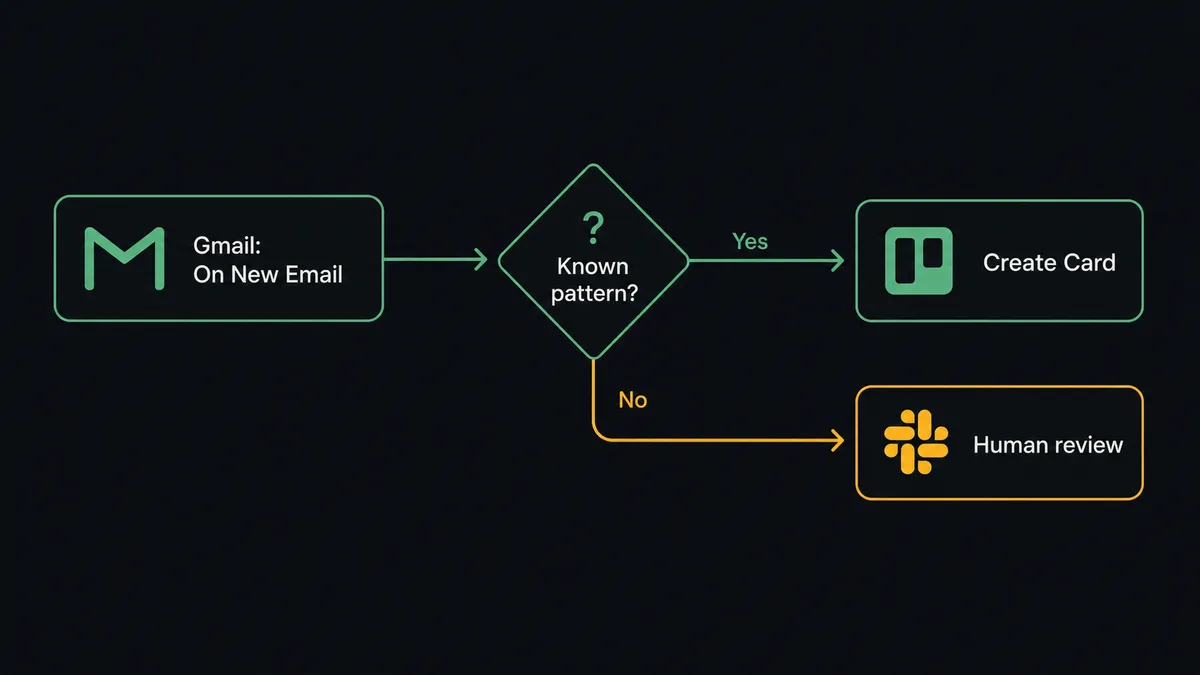
You connect Gmail to Trello by using FlowRunner’s On New Email or On New Attachment trigger to fire a flow that calls Trello’s Create Card action, mapping the email subject, body, and sender to the card’s name, description, and assignee fields. FlowRunner is a visual AI-agent orchestration platform where automations run autonomously and pause for human judgment on the steps that carry real consequence. That same connection can run as an AI agent that reads each email, decides what kind of Trello card to create or whether to update an existing one, and pauses for a human when the message does not fit a known pattern.
The problem it solves
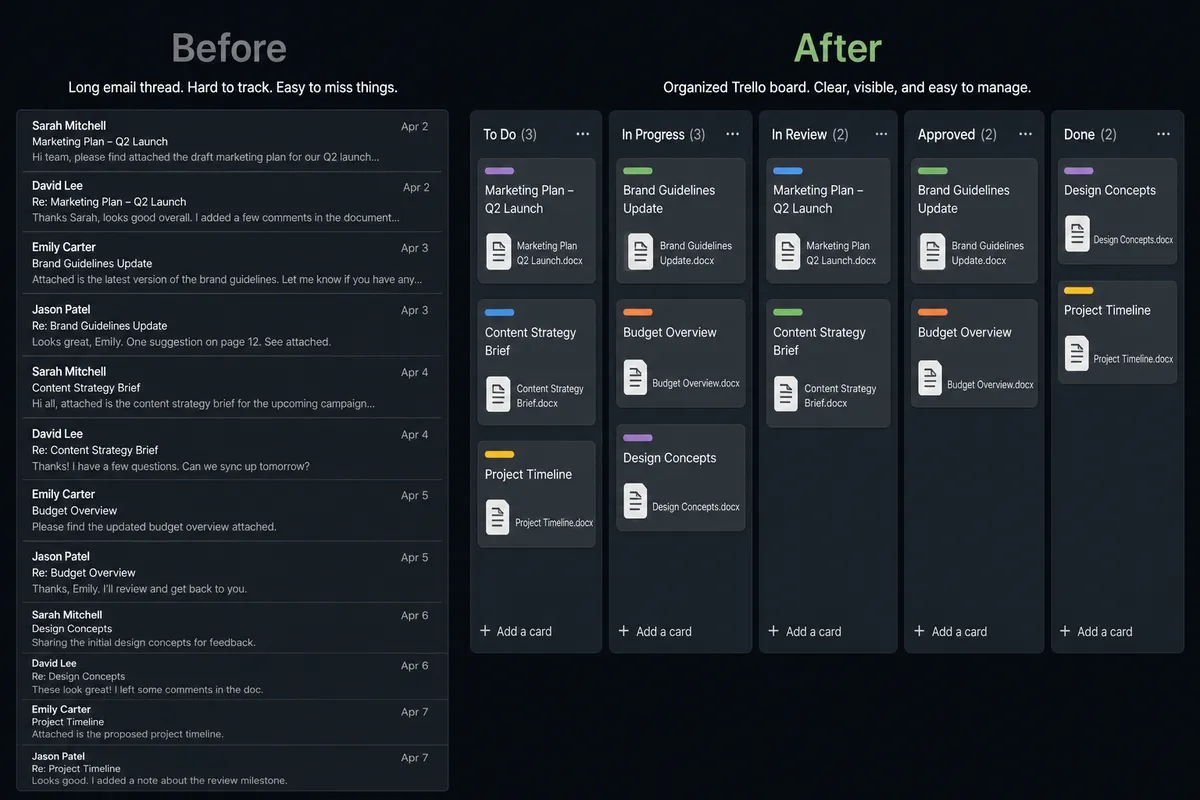
Every operations team has an inbox that also functions as a task queue. A client emails asking for a status update; someone needs to open Trello and create a card. A vendor sends a document; someone needs to log it somewhere so it does not get lost in the thread. A support request arrives; the team talks about it in Slack while the Trello board shows nothing. The work exists, but it lives only in the inbox until someone with enough context decides to move it somewhere trackable.
The manual step between “email arrives” and “work is tracked” is where things fall through the cracks. It depends on the right person seeing the right message at the right time, then taking the time to open Trello and create a card with enough context for anyone else to act on. When that step is skipped, work piles up in email threads rather than on the board. The board stops reflecting reality, and the team loses visibility into what is actually in progress.
How it works: the connection
The base connection is a Gmail trigger mapped to a Trello action. Here is how the three most common patterns work.
New email to new card. The On New Email trigger fires when a message arrives matching a Gmail query filter (for example, emails to a specific address, or emails with a subject line containing “request”). The flow calls Get Message to retrieve the full body, then calls Create Card with the subject as the card name, the body as the card description, and the sender’s email as a tag or custom field. You choose the target board and list at configuration time.
New attachment to card with attached file. The On New Attachment trigger fires when a file arrives. The flow calls Save Attachment to move the file into flow storage and get its URL. It then calls Create Card with the email context and calls Add Attachment to Card to link the document directly to the card. The card lands on the board with the document already attached, ready for review.
Starred email to priority card. The On Email Starred trigger fires when a team member stars a message manually, which is a signal that it needs action. The flow creates a card in a Priority list and applies Add Label To Message to mark the thread as handled. The person who starred the message can see it on the board without re-explaining the context to anyone.
Can an AI agent run it? (And why a human stays in the loop)
A simple trigger-to-action connection creates a card for every email. An AI agent decides what kind of card to create, whether a card already exists that should be updated instead, and whether the email is something it should act on at all.
The agent receives the email through Get Message and reads the full context: sender, subject, body, any attachments. It evaluates that context against its instructions. A recognized vendor email with an attached invoice becomes a card in the AP Review list with the invoice amount and due date in the description. A client email referencing an existing project triggers Find Card by Name to check whether a card already exists. If it does, the agent calls Update Card to add the new information rather than creating a duplicate. An email from an unknown sender with unusual content gets a different path entirely.
Here is a real decision moment. An operations team receives vendor invoices, support requests, and client status updates through the same inbox. A vendor the agent has seen dozens of times sends a PDF invoice for $4,200. The agent recognizes the sender, creates a card in the AP Review list, and saves the attachment to the card. No human involved.
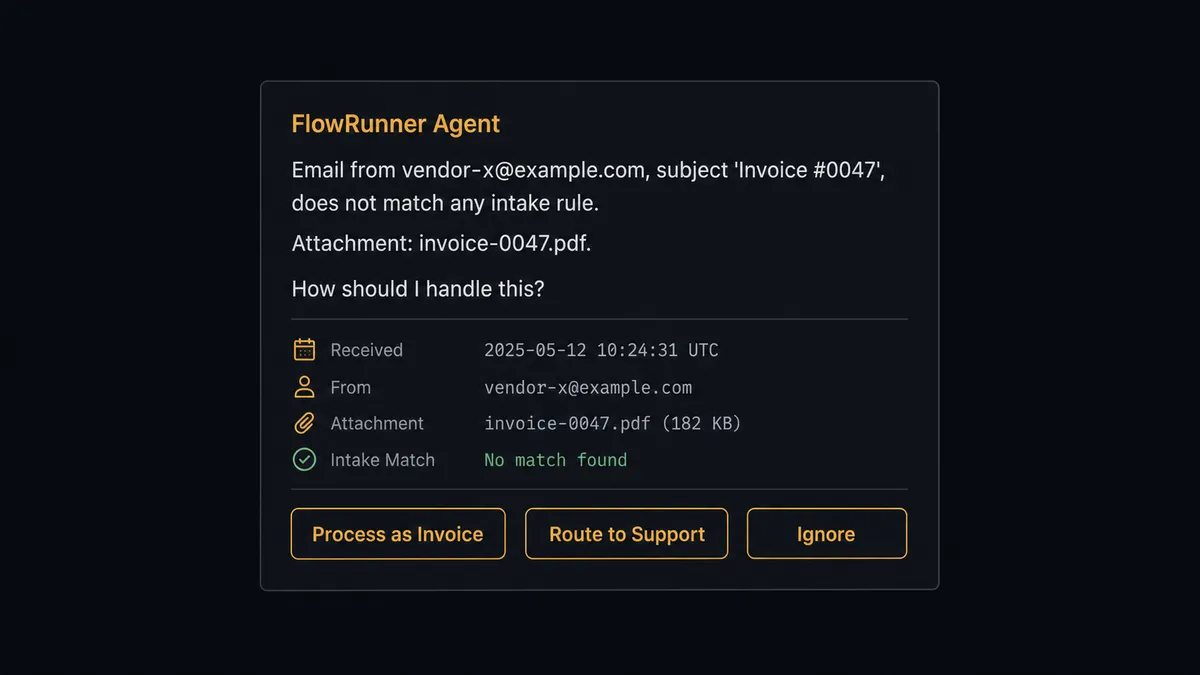
The next message is from an address the agent has never seen, with a subject line that does not match any known intake pattern and an attachment the agent cannot classify. The agent does not create a card and hope for the best. It applies a triage label in Gmail with Add Label To Message, creates a card in the Review list with the full email text in the description, and sends a Slack message: “Email from [sender] with subject ‘[subject]’ does not match any known intake rule. The attachment is [file name]. How should I handle this: process as vendor invoice, route to support, or ignore?” The team member responds. The agent takes the next step based on that response. The decision, the decider’s identity, and the timestamp go into the audit trail.
This is not a hardcoded threshold. The agent evaluates context each time. A vendor the agent knows sending an invoice 3x their usual amount might trigger the same escalation, even though the sender is recognized. A sender it has never seen submitting something that perfectly matches a known intake pattern might flow through automatically. The agent makes a judgment call.
FlowRunner vs Zapier
Zapier is the right choice for many teams connecting Gmail and Trello. It is fast to configure, the trigger-to-action model is straightforward, and for simple “new email creates a card” workflows it is reliable. The comparison below is for teams that have outgrown the simple case.
| Zapier | FlowRunner | |
|---|---|---|
| Simple trigger-to-action | Yes, well supported | Yes, equivalent |
| AI agent with reasoning | No native agent; add-on AI steps only | Native agent node reads the email and decides what to do |
| Human-in-loop | Manual approval steps available | Agent invokes human oversight as a callable tool based on its own judgment |
| Pricing model | Per-task pricing; costs grow with volume | Per-workflow-execution pricing; unlimited users and workflows on every tier |
| BYOK for AI | No | Yes; connect your own OpenAI or Anthropic key |
| Audit trail | Basic task history | Full decision and escalation history at the Professional tier and above |
Zapier genuinely does well at what it was built for: connecting apps with simple trigger-to-action logic. FlowRunner’s difference is that the agent in the middle reads the data and decides, rather than always doing the same thing regardless of what the email says.
Before and after
| Before | After | |
|---|---|---|
| Card creation | Someone reads the email and manually creates a Trello card when they have time | On New Email fires and the agent creates or updates a card within seconds of arrival |
| Attachments | Files downloaded from email and uploaded to Trello by hand | Save Attachment and Add Attachment to Card run automatically; files land on the card before anyone opens the email |
| Board accuracy | Board reflects last week’s state because updates depend on people remembering to move cards | Board updates happen when emails arrive; pipeline state is current |
| Exceptions | Unusual emails pile up in the inbox with no ownership | Agent creates a Review card and sends a Slack escalation; exceptions have an owner within minutes |
| Thread management | Threads stay unresolved in the inbox after the work is done | Add Label To Message marks threads as handled; inbox stays clean |
What you can build
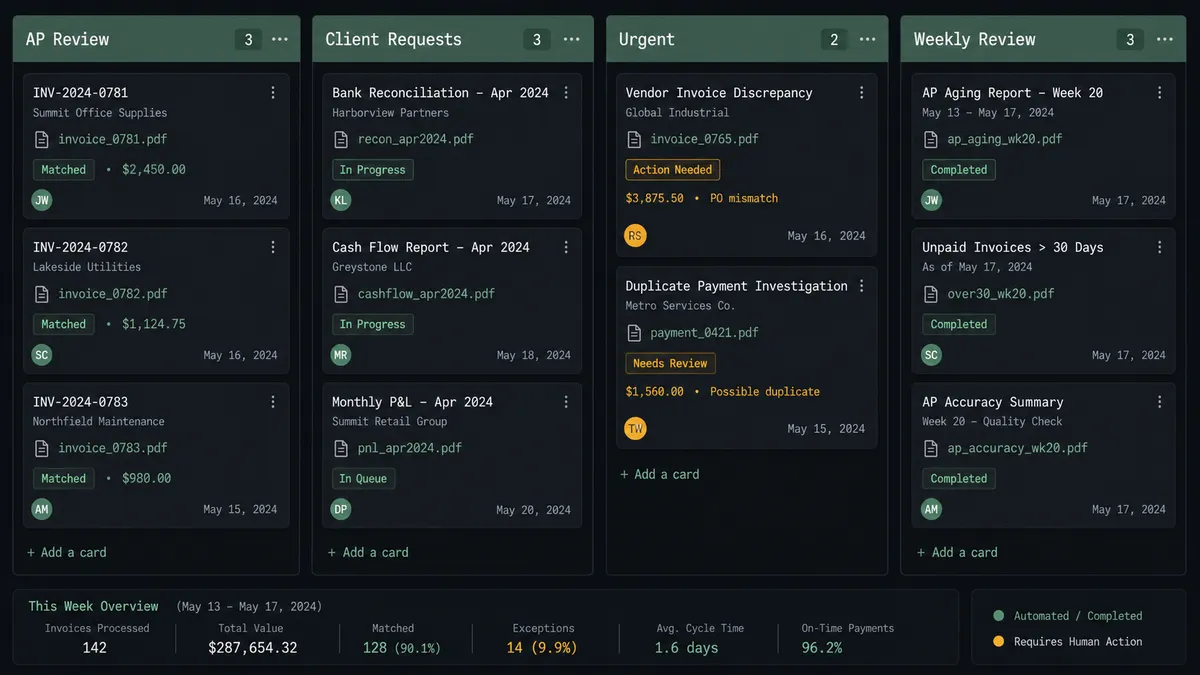
Vendor invoice intake board. On New Attachment fires when a vendor email arrives with a PDF. The agent calls Save Attachment, creates a card in the AP Review list with the invoice amount and due date extracted from the file, and attaches the document to the card. AP managers work from the board, not the inbox.
Client request tracker. On New Email filters for messages from client domains. The agent calls Find Card by Name to check whether a card already exists for that client and request type. If it does, Add Comment to Card logs the new message. If it does not, Create Card opens a new item in the Client Requests list. No duplicate cards. No lost requests.
Support queue with priority escalation. On Email Starred fires when a support team member flags an urgent email. The agent creates a card in the Urgent list, assigns it to the on-call team member via Add Member to Card, and sends a Slack notification. The starred flag becomes a routed, owned card in under a minute.
New lead to sales board. On New Email filters for inbound messages that match lead signals (certain subject lines, specific sender domains, or inquiry language the agent is trained to recognize). The agent creates a card in the Qualified list of the Sales pipeline board, populates the description with the sender’s details, and sets a follow-up due date.
Weekly digest card. A scheduled trigger runs once a week and calls Get Messages List with a query filter for unread messages in a specific Gmail label. The agent creates a summary card in a Weekly Review list with the count and key subjects. The operations lead has the week’s outstanding items on the board without running a manual search.
Common questions
Is it free to connect Gmail and Trello on FlowRunner? FlowRunner provides a $100 trial credit on the Growth tier, which covers roughly 67 days of real usage. No credit card is required to start. After the trial, the Growth plan is $45 per month for 12,000 executions with unlimited users and workflows.
Does the agent need my own AI provider key? Yes. FlowRunner uses a Bring Your Own Keys model, so you connect your own OpenAI, Anthropic, or other provider account. FlowRunner orchestrates the agent; you control the AI spend and model choice.
Can I self-host FlowRunner? Yes. FlowRunner offers a free Community Edition for self-hosted single-instance deployments and an Enterprise self-hosted tier with multi-instance clustering and full compliance features.
What happens when the agent is not sure what to do with an email? The agent does not guess. It applies a triage label in Gmail, creates a Trello card in a Review list with the full email context, and sends a Slack message to the responsible team member asking how to proceed. Execution pauses until the human responds.
Can I connect multiple Gmail accounts or Trello boards? Yes. FlowRunner supports multiple authenticated accounts per integration. You can route emails from different inboxes to different Trello boards within a single workflow.
Does FlowRunner replace Zapier for this connection? FlowRunner can replace Zapier for this use case and extends it. Simple trigger-to-action connections work on FlowRunner the same way they do on Zapier. The difference is that FlowRunner also supports an AI agent that reads each email, reasons about it, and decides whether to create a card, update one, escalate to a human, or do nothing.
Getting started
Start with a $100 credit on the Growth tier, no credit card required. The credit covers roughly 67 days of the Gmail-to-Trello workflow running in production.
Set up your integrations at /integrations/gmail-service and /integrations/trello. Both connectors authenticate in minutes: Gmail via OAuth2, Trello via API key.
Ready to build? Start at flowrunner.ai or book a 30-minute walkthrough at calendly.com/flowrunner/intro. Bring the workflow you want to automate and leave with it running.